Find out what you can do if your iPhone photos aren’t syncing to iCloud.
iCloud Photos is a nifty iPhone feature that saves every photo and video you take to the cloud, allowing you to access your library from any device at any time. Any changes you make to your collection on one device are replicated across all of your other devices.
But, sometimes, things go wrong in the pipeline, and your Apple devices stop syncing your photos. If for some reason, your iCloud Photos aren’t syncing properly, you could lose some precious photos and fond memories. So, to avoid that pain, let’s look at a few steps to take if your photos aren’t syncing to iCloud.
1. Check Your Settings
If your photos aren’t syncing to iCloud on your iPhone, you should first check if you have the correct iCloud Photos configuration. First, open the Settings app and tap on your name at the top of the screen. Check that you’re signed in to the same Apple Account you used to set up iCloud Photos.
If you’re already signed in to the correct Apple Account, the second step is to ensure that iCloud Photos is enabled on your device. Tap on iCloud, select Photos, and check that Sync this iPhone is toggled on.
If Sync this iPhone is already on but your photos still aren’t uploading, try toggling it off and then back on again. Wait about 30 seconds before you flip it back on — this forces your iPhone to re-establish its connection with Apple’s iCloud servers and can kick a stuck sync back into gear.
If you set up an iCloud Shared Photo Library, there’s one more thing to check. When you move photos to your Shared Library, they disappear from your Personal Library, and that can look a whole lot like a sync failure when it’s actually working as intended. Open the Photos app, tap Library, then tap the Sort and Filter button — or tap Collections, then tap the More button — and look at your Library View Options to confirm you’re viewing Both Libraries rather than just your Personal Library. (On iOS 18, tap the profile button in the upper corner instead and scroll down to Library View Options.)
2. Check Your Internet Connection
Because iCloud is a web-based service, iCloud Photos may not sync on your iPhone when your internet connection is not working. To ensure your connection is good, check to see if other apps can connect to the internet or try to launch a new web address in your browser.
If the problem is your internet connection, try resetting your router or troubleshooting your cellular data to see if that solves the problem. You can also try resetting your iPhone network settings.
To reset your network settings, go to Settings > General > Transfer or Reset iPhone > Reset > Reset Network Settings. Your iPhone will restart, and when it comes back up you’ll need to re-enter your Wi-Fi passwords — all of them get wiped along with any saved VPN configurations and Bluetooth pairings. It’s a bit of a hassle, but it clears out corrupted network data that can quietly prevent iCloud from connecting.
If your connection is fine but you’re attempting to use cellular data for iCloud Photos, you need to enable this function first. Otherwise, your iCloud photo library will not show up on your iPhone.
To do so, turn on your iPhone’s cellular data first. Then, go to Settings > Apps > Photos > Cellular Data. Toggle on Cellular Data, and if your data plan allows, you can also opt to toggle on Unlimited Updates.
3. Turn Off Low Power Mode
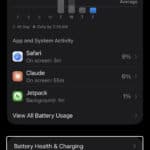
Go to Settings > Battery > Power Mode and make sure Low Power Mode is turned off. If your iPhone battery is below 20%, iCloud Photos will pause syncing on its own even without Low Power Mode enabled, so plug in before you troubleshoot further.

Low Power Mode cuts back on background activity to stretch your battery life, and iCloud Photos syncing is one of the first things it shuts down. It’s easy to overlook. After all, a lot of people turn it on during a busy day and forget about it, then spend an hour wondering why their photos aren’t uploading to iCloud. While you’re at it, check for Low Data Mode too — go to Settings > Wi-Fi, tap the info button (the little ⓘ) next to your connected network, and make sure Low Data Mode is off. That setting throttles background data usage (which includes photo uploads) and can quietly block your iCloud Photos sync without any visible warning.
4. Check Apple’s System Status
Open Safari and go to apple.com/support/systemstatus to check whether iCloud services are experiencing an outage. Look for Photos, iCloud Account & Sign In, and Apple ID specifically — if any of those show a yellow or red indicator, the problem is on Apple’s end and no amount of troubleshooting on your iPhone will fix it.
Apple’s servers don’t go down often, but when they do, it affects millions of devices at once. There was a widespread iCloud outage in February 2026 that knocked out Photos, Find My, and several other services for hours. If you see a problem on the status page, the only thing to do is wait for Apple to resolve it — usually a few hours at most. Bookmark the page so you can check it fast next time something feels off.
5. Check Your iCloud Storage
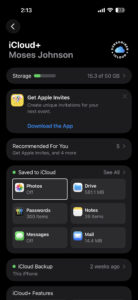
Another common culprit for photos not uploading to iCloud on your iPhone is a lack of storage. Every Apple user gets 5GB of free iCloud storage, but that’s hardly enough—especially if you take many photos regularly.
To be sure you haven’t run out of storage, you’ll have to check your current usage.
- Go to Settings.
- Tap your name.
- Tap iCloud.
You see how much space you have left in iCloud and if you need to upgrade your storage plan. If you have maxed out your free iCloud storage, you need to either upgrade your storage plan or reduce the amount of storage that you’re using. Tap Manage Account Storage to see how apps are using your storage.
6. Optimize Your iPhone Storage
Depending on the quality of photos you’ve chosen to upload to iCloud, you could max out your iPhone storage quickly, which will also cause iCloud Photos to not update correctly.
By default, all your photos and videos are saved in their original, high-resolution format on your device and in iCloud Photos. But you can use the Optimize Storage feature to save storage space on your iPhone.
Optimize Storage allows iCloud Photos to manage the size of the library on your iPhone. When this option is turned on, your original, high-quality photos and videos are stored in iCloud, while compressed versions remain on your device. You can download the full-resolution versions from iCloud via Wi-Fi or cellular at any time.
To enable this option, follow these steps:
- Tap Settings > [your name] > iCloud > Photos.
- Select Optimize iPhone Storage to save space on your device.
7. Check Your Photo Library Status
Open the Photos app and tap the profile button in the upper corner of the screen — on iOS 26 or later, tap Collections first, then tap the profile button. Your library status appears right below your name and photo count, and it will tell you exactly what’s going on with your sync: whether it’s paused, actively uploading, or stuck on a specific number of items.
This is the single most useful diagnostic step that most people skip. Your iPhone is actually pretty good about telling you why syncing stopped — the problem is that the status message is buried in a spot nobody thinks to look. You might see messages like “Optimizing System Performance” or “Poor Network Connection” or even “[Device] Needs to Cool Down,” and each one means something different. If you see a Sync Now button, tap it to force an immediate upload. If the status says your library is up to date but you’re still missing photos on another device, the issue might be on the receiving end rather than the uploading end.
8. Restart Your iPhone
If your iCloud Photos are still not syncing, try rebooting your iPhone. This will fix any software glitches that could be hindering your photos from syncing to iCloud. Simply turn your iPhone off and back on, then check if your problem is fixed.
9. Update Your iPhone
An outdated version of iOS could be the reason for many performance issues, including the problem where iCloud Photos is not syncing on your iPhone. Check your phone for software updates and install them to fix any bugs that might be the culprit of the issue.
- Go to Settings > General > Software Update.
- If an update is available, tap Update Now then follow the onscreen instructions.
10. Plug In Your iPhone to Charge
iCloud syncs photos when the device is plugged in and connected to Wi-Fi. So, if iCloud Photos isn’t syncing, find the nearest power outlet and plug your phone in. Then, make sure your iPhone can connect to Wi-Fi while you leave it alone to charge and sync.
If you have a large photo library — we’re talking thousands of photos and videos — the initial sync can take a long, long time. Apple recommends leaving your iPhone plugged in and connected to Wi-Fi overnight to let the upload finish without interruption. Don’t keep checking the Photos app every five minutes either, because opening and using the phone can slow down background syncing. Lock the screen, walk away, and let it work.
11. Sign Out and Back Into Your Apple Account
Go to Settings, tap your name at the top, scroll all the way down, and tap Sign Out. Your iPhone will ask whether you want to keep a copy of certain data on the device — choose to keep it so nothing gets removed. Once you’re signed out, wait a minute, then sign back in with the same Apple Account.
This is a heavier fix and you shouldn’t need it in most cases, but signing out and back in forces your iPhone to rebuild its connection to iCloud from scratch. It clears out authentication tokens and any corrupted sync state that a normal restart wouldn’t touch. The downside is that it takes a while for everything to re-sync afterward (not just photos — your contacts, calendars, notes, and other iCloud data will all need to re-download too), so don’t do this one right before you need to be somewhere.
Keep Your iCloud Photos Synced and Up to Date
iCloud Photos is an excellent feature for syncing media across your Apple devices. If you take advantage of it, make sure you have everything set up and running smoothly so that it serves its purpose.
We hope that the above fixes have resolved any hitches you ran into. However, if you still encounter issues where your iCloud Photos aren’t syncing, you may want to take your iPhone to a Genius Bar for more help.
Before you make a Genius bar appointment, try reaching out to Apple Support through the Support app or at support.apple.com — they can run remote diagnostics on your iCloud account that you can’t do yourself, and sometimes the issue is a server-side flag on your account rather than anything on your device. If your photos have been stuck for days and you’ve gone through every step here, that’s a strong sign the problem goes deeper than settings.