- If FaceTime is not working on your iPhone, there may be many reasons why, some of which are out of your control.
- Before troubleshooting, you should check for certain factors, such as whether or not there’s a FaceTime outage.
- Try restarting your iPhone and force closing FaceTime before moving on to more involved fixes.
- If basic fixes don’t work, try signing out of FaceTime, resetting your network settings, or checking your camera and microphone.
- Otherwise, there are several ways you can troubleshoot to get the app back up and running.
If FaceTime is not working on your iPhone, don’t worry, there are a lot of things you can do to try and fix it. You just have to know where to start.
Here’s a breakdown of why your FaceTime app is not working on your iPhone, and troubleshooting tips to try.
How to troubleshoot when FaceTime isn’t working on iPhone
Make sure you have a working internet connection
The first thing you should do when FaceTime is not working on your iPhone is to make sure that your phone is connected to Wi-Fi or your wireless carrier’s cellular data network, and that you can access the internet.
If you are trying to use FaceTime over Wi-Fi, go into your Settings and turn Wi-Fi off and then back on again.
If you’re trying to use FaceTime over cellular, make sure that cellular data is on. Go to Settings and tap Cellular or tap Mobile Data, then turn on Cellular Data. Then scroll down to the Cellular Data section, and make sure FaceTime is enabled for cellular use in the list of apps.
You should also make sure that you are using a fast internet connection to avoid sound quality issues with FaceTime. If your cellular connection or Wi-Fi network runs slowly, or other people stream audio or video on the same Wi-Fi network, you might have these issues:
- Connection alerts or unable to connect
- Choppy video calls
- Black screen
- Dropped calls
Make sure that both you and the person that you FaceTime with use a fast Wi-Fi or cellular connection.
If you’re on a work or school network that uses a firewall, FaceTime may be blocked at the network level. FaceTime relies on specific ports to connect — and some corporate firewalls restrict those by default. You can ask your network administrator to check Apple’s support page on using FaceTime behind a firewall, or try switching to a personal Wi-Fi or cellular connection to see if that fixes the problem.
Restart your iPhone
Press and hold the Side Button and either Volume button until the power-off slider appears on your screen, then drag the slider to turn your iPhone off. Wait about 10 seconds, then press and hold the Side Button again until you see the Apple logo.
Restarting clears out temporary glitches that pile up in the background — things like stuck network processes or misbehaving app states that you’d never notice until something like FaceTime refuses to connect. It sounds almost too basic, but a restart fixes FaceTime issues more often than most people expect. If your calls have been dropping, lagging, or producing that robotic audio distortion (and I do mean robotic, not just a little choppy), a fresh reboot is the fastest thing to try before you go digging through settings.
Update your iPhone’s software
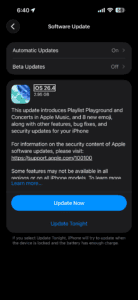
If you experience issues with receiving a FaceTime call after set up, update your iPhone to the latest version of iOS. Go to Settings > General > Software Update, then install any pending updates. See this article if you can’t update your iPhone.
Check that FaceTime is turned on
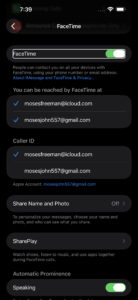
Go into your iPhone’s Settings app, tap Apps, tap FaceTime, and make sure that the toggle next to FaceTime is enabled.
If FaceTime says “Waiting for activation,” turn FaceTime off, restart your phone, then turn FaceTime back on. It might take up to 24 hours for your carrier to verify your phone number with Apple. Contact your carrier to make sure that you can send and receive SMS messages and wait up to 24 hours after you try the troubleshooting steps above.
If you’re using an iPhone with both an eSIM and a physical SIM (or two eSIMs), make sure the phone line you want to use with FaceTime is selected and turned on. Go to Settings > Cellular, and check that the correct line is active. A deactivated or misconfigured SIM — even an old one you’re not using anymore — can interfere with FaceTime activation in ways that aren’t obvious at all.
If you aren’t seeing FaceTime at all, go from the Settings app to Screen Time, and then Content & Privacy Restrictions, followed by Allowed Apps & Features. Then make sure both the camera and FaceTime are allowed by that device.
Make sure you’re signed in
To use FaceTime on your iPhone, you need to be signed in with your Apple Account email address or phone number. You can check this by going to Settings > Apps > FaceTime and making sure that below You Can Be Reached By FaceTime At, your phone number or Apple Account email address are selected.
Sign out of FaceTime and sign back in
Go to Settings > Apps > FaceTime, tap your Apple Account at the top, then tap Sign Out. Restart your iPhone, go back to that same screen, and sign in again with your Apple Account.

This does something a little different from toggling FaceTime off and on. When you sign out completely, you’re forcing your iPhone to re-establish its connection with Apple’s FaceTime servers from scratch — refreshing your authentication, your registered phone number, and your email addresses all at once. It’s the kind of fix that tends to work when FaceTime has been stuck in a weird half-connected state for days, where calls fail but the app doesn’t give you a clear error message.
Make sure your date and time settings are correct
We recommend checking your iPhone’s Date & Time Settings. FaceTime won’t work on your iPhone if the date and time are incorrect, especially if your device thinks it is in the future.
Go to Settings > General > Date & Time. Then, turn on the switch next to Set Automatically if it’s not on already.

Check if FaceTime is down
There’s a chance that FaceTime is down on Apple’s end. Check Apple’s System Status page to learn whether FaceTime is experiencing a service outage.
Force close and reopen FaceTime
Swipe up from the bottom of your screen and pause in the middle to open the App Switcher, find the FaceTime app card, then swipe it up and off the screen to close it. Wait a few seconds and open FaceTime again.

If FaceTime froze mid-call, gave you a black screen, or just stopped responding after you answered, force closing the app can clear the problem without restarting your entire phone. This is different from a restart — you’re only killing the FaceTime process itself, which takes about 3 seconds and doesn’t affect anything else. It won’t help with deeper issues like activation errors or network problems, but for a FaceTime app that’s acting glitchy or unresponsive, it’s the quickest thing to try.
Check your iPhone’s camera and microphone
Open the Camera app and make sure it captures video on both the front and rear cameras, then open Voice Memos, record a short clip, and play it back to confirm the microphone is picking up sound.
If you can see yourself in FaceTime but the other person can’t see or hear you — or the reverse — the issue might not be with FaceTime at all. A camera or microphone that isn’t producing anything points to a hardware problem rather than a software one, and no amount of toggling settings or restarting will fix damaged hardware. On the other hand, if both the Camera app and Voice Memos work perfectly fine, you know for certain the issue is specific to FaceTime or your connection, which narrows things down quite a bit.
Figure out whether the problem is on your end or someone else’s
Keep in mind that FaceTime problems can be caused by a problem with your iPhone — or with the person you’re trying to call.
Does FaceTime not work with anyone or just one person? If necessary, call several people and see whether the problem is limited to one person or to everyone.
Here’s a helpful rule of thumb: If FaceTime is not working with anyone, it’s probably a problem with your iPhone. If it doesn’t work with just one person, it’s probably a problem on the other person’s iPhone, iPad, or Mac.
If FaceTime won’t connect to one specific person, check whether you’ve accidentally blocked them. Go to Settings > Apps > FaceTime, scroll down to Blocked Contacts, and look for their name. Blocking someone stops FaceTime calls in both directions, and it’s surprisingly easy to block a contact by mistake.
You should also check whether Focus mode or Do Not Disturb is turned on. When Focus is active, incoming FaceTime calls may be silenced or blocked entirely depending on how your Focus filters are set up. Open Control Center and look for the Focus icon — if it’s highlighted, tap it to turn it off and try the call again.
Reset your network settings
Go to Settings > General > Transfer or Reset iPhone, tap Reset, then tap Reset Network Settings. You’ll need to enter your passcode to confirm.
Save this one for when the easier fixes haven’t worked, because resetting your network settings wipes out all of your saved Wi-Fi passwords, VPN configurations, and Bluetooth pairings. Your iPhone has to reconnect to everything from scratch afterward. But if FaceTime stopped working after a software update or after you switched carriers (which is a lot more common than you’d think), corrupted network settings are very, very often the cause. Once the reset is done and your iPhone restarts, reconnect to your Wi-Fi and try FaceTime again.
Check whether a FaceTime feature is available
Even if both you and the person you’re trying to contact have a FaceTime account, that may not be all of the story. FaceTime and FaceTime audio calling are not available for all countries, regions, or carriers.
You can check Apple’s website to learn which countries and carriers do and do not support FaceTime. Unfortunately, If you’re trying to use FaceTime in an unsupported area, there’s nothing you can do to make it work.
If nothing has worked
If you’ve gone through every step above and FaceTime still won’t work on your iPhone, the problem may be something you can’t fix on your own. Contact your wireless carrier first — activation issues, account restrictions, and SMS verification problems all fall on their side, and they can check things that aren’t visible to you in your iPhone’s settings.
If your carrier confirms everything looks fine on their end, your next step is Apple Support. You can reach them through the Apple Support app, by phone, or by scheduling a visit at an Apple Store. There’s a chance the issue is hardware-related — a failing cellular antenna or a damaged microphone won’t show up in any settings menu — and Apple’s diagnostics can catch problems that troubleshooting steps can’t.
As an absolute last resort, you can try resetting all settings on your iPhone by going to Settings > General > Transfer or Reset iPhone > Reset > Reset All Settings. This won’t erase your photos, apps, or data, but it will reset every preference on your phone back to factory defaults — Wi-Fi passwords, wallpaper, notification settings, all of it. It’s a pain to set everything back up, but it can resolve deep software issues that individual fixes miss.