Don’t fumble in the dark when your iPhone flashlight isn’t working. Follow these troubleshooting tips to fix it instead.
Many users have faced the frustrating issue of their iPhone flashlight not turning on. For example, you might have seen problems like your iPhone flashlight not working after an iOS update, the flashlight button grayed out, or your flashlight not turning on while the iPhone is overheated or locked.
So, how can you fix the flashlight and get it working again? Follow this troubleshooting guide to find out.
1. Charge Your iPhone
If your iPhone’s battery is almost empty, the flashlight may not work. So, the first thing you should do when your iPhone flashlight is not working is to charge your device.
Simply plug your iPhone into power. The flashlight feature should start working again once your iPhone has sufficient power.
2. Disable Low Power Mode
On an iPhone 15 or later, go to Settings > Battery > Power Mode and turn off Low Power Mode. On an iPhone 14 or earlier, go to Settings > Battery and turn off the Low Power Mode toggle. If you don’t see it in Settings, you can also check for the Low Power Mode tile in your Control Center and tap it to turn it off.
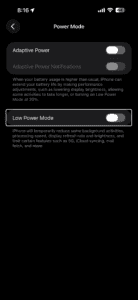
Low Power Mode kicks in automatically when your battery drops below 20%, and you can tell it’s on because the battery icon in the status bar turns yellow. While the flashlight is supposed to keep working in this mode, it doesn’t always cooperate — especially on older devices or after an iOS update that introduced a bug. Turning it off restores full power to all your iPhone’s features, flashlight included, and it only takes a couple of seconds to rule this out as the problem.
3. Check Your iPhone Isn’t Too Hot
When your iPhone gets too hot, the flashlight may stop working. It’s not advisable to continue using an overheating iPhone. If your device exceeds a particular temperature limit, it will eventually shut down until it cools off. You’ll also see a warning appear on your screen if the temperature gets too high.
To allow your device’s temperature to drop naturally, place your iPhone in a cool, dry place away from direct sunlight. Do not attempt to put your device into the fridge, though, as this will cause damage to it. Just find somewhere that’s naturally cool and shady. Once your device cools down, your iPhone flashlight should start working again.
Extreme cold can cause flashlight issues too. If your iPhone has been sitting in a freezing car or outside in winter temperatures, bring it indoors and let it warm up to room temperature before you try the flashlight again. Apple rates iPhone operating temperature between 32° and 95° F (0° and 35° C), and anything outside that range can temporarily disable features like the flash.
4. Close the Camera App
If your phone’s camera app is open, the flashlight won’t be able to take control of the LED.
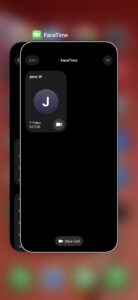
Swipe up and hold on the center of the screen, then swipe up to close the Camera app.
This also applies to any third-party app that uses your camera. Apps like Instagram, Snapchat, FaceTime, WhatsApp, and even QR code scanner apps all take control of the LED when they’re running, and sometimes they hang onto it even in the background. If your flashlight icon is grayed out and the Camera app isn’t open, swipe through your recent apps and close anything that might be using the camera — that’s almost always what’s going on when the button won’t respond.
5. Remove Your iPhone Case
Take off your iPhone case, any lens attachment, or camera film and try the flashlight again. Some cases (particularly thicker rugged ones or cases with sliding camera covers) can physically block the LED flash.
It sounds too obvious to be the fix, but it’s worth ruling out before you dig into software troubleshooting. If the flashlight works fine without the case and stops working when you put it back on, you’ve found your problem — and it’s a cheaper fix than a trip to the Apple Store.
6. Turn On Your Flashlight Using the Camera Flash
If you can’t turn on your iPhone flashlight from the Control Center, a workaround is to turn it on in the Camera app by activating the flash function. Here’s how:
In the Camera app, go to Video mode. Swipe up from the bottom menu (on the word, Video) to bring up more options. Tap the Flash icon. Select On.
7. Toggle the Flash in Your iPhone’s Camera App
To get rid of glitches that stop your iPhone flashlight from working, you can also try turning your camera flash on and off. The steps are the same as the workaround to turn on your iPhone’s camera flash, as discussed in the previous solution. But instead of leaving the Flash set to On, toggle between On and Off a few times.
8. Ask Siri to Turn On Your iPhone’s Flashlight
If your camera flash doesn’t seem to be working either, there’s another way to enable your iPhone flashlight: Siri. Siri can help you turn on your iPhone flashlight even if the icon is grayed out.
Activate Siri by long-pressing the Side button on your iPhone or saying, “Siri” or “Hey Siri.” When Siri starts listening, say, “Turn on the flashlight.” Your flashlight should turn on instantly, and Siri will also say that it’s on now.
9. Adjust the Flashlight Brightness
Long-press the Flashlight icon on your Lock Screen or in the Control Center to bring up the brightness slider, then drag your finger from the bottom of the slider all the way to the top.
Your iPhone remembers the last brightness level you set for the flashlight, and if you accidentally dragged it all the way down to zero at some point, the flashlight will look completely dead the next time you tap it — the icon lights up like it’s on, but no actual light comes out. This trips up a lot of people (and honestly, it’s easy to do by accident when you’re adjusting the slider in a hurry). Pulling the brightness back up to maximum should fix it right away.
10. Update Your iPhone’s iOS
iOS updates usually come with fixes for performance bugs and various glitches. So, perhaps all you need to do to fix your iPhone flashlight is to update your iPhone to the latest version of iOS.
Go to Settings > General > Software Update to see if an update is available for your iPhone. Make sure your iPhone is charging or has more than 50% battery before you proceed with the update process.
On the other side of this, an iOS update can sometimes be what caused the flashlight to stop working in the first place. Apple Community threads are full of reports from users whose flashlight broke right after updating to iOS 16, iOS 17, or iOS 18. If your flashlight was fine before the update, and none of the fixes above have helped, you may be dealing with a software bug that Apple hasn’t patched yet — in which case a follow-up update is usually the only real fix, and you’ll want to keep checking Settings > General > Software Update every few days until one arrives.
11. Restart Your iPhone
If the above methods don’t solve the problem and your iPhone flashlight still isn’t working, the next step you should try is restarting your iPhone.
You can restart your iPhone by going to Settings > General > Shut Down > Slide to power off. Then, hold the Side button to restart your iPhone once it powers off.
12. Force Restart Your iPhone
If a regular restart didn’t help — or if your iPhone is frozen and you can’t get to Settings at all — try a force restart instead. On an iPhone 8 or later, quickly press and release the Volume Up button, quickly press and release the Volume Down button, then press and hold the Side button until the Apple logo appears.
A force restart is different from a normal restart because it clears out temporary memory and forces every background process to shut down completely, which can break a stuck app or service out of whatever loop it’s caught in. It won’t delete any of your data or settings. If a regular restart feels like closing and reopening an app, a force restart is more like pulling the plug and starting fresh — and for stubborn flashlight glitches that survive a normal reboot, it’s often the thing that finally works.
13. Restore Your iPhone to a Previous Backup
Besides updating and restarting your iPhone, you can also try restoring your iPhone to a previous backup from when the flashlight was still working as usual. However, when you use this method, keep in mind that you will also lose any new data that was added to your device since you made that backup.
14. Reset All Settings on Your iPhone
If your iPhone torch still isn’t working, the last solution you can attempt is to reset your phone’s settings by going to Settings > General > Transfer or Reset iPhone. Tap Reset and choose Reset All Settings from the pop-up menu. You won’t lose any data from your iPhone; all this does is revert your iPhone’s settings to factory default values.
Take note that the reset process can take a long time, especially if you have a lot of data on your iPhone. So, if you’re stuck in the dark and urgently need a flashlight, don’t rely on resetting your iPhone right there and then!
Make sure you don’t accidentally choose Erase All Content and Settings from the Reset menu. Doing that would delete all the data on your device.
Effective Solutions When Your iPhone Flashlight Is Not Working
If you’ve been stuck wondering why the flashlight won’t work on your iPhone, we hope this list of fixes has helped you resolve the problem effectively.
If you’ve tried every fix on this list and the flashlight still won’t turn on, there’s one more thing worth checking before you contact anyone. Open the Camera app, switch to Photo mode, turn the Flash to On, and take a picture in a dim room. If the LED doesn’t fire at all — no flash, not even a flicker — that points to a hardware problem with the LED module itself rather than a software glitch, and no amount of restarting or resetting will fix it.
However, if the issue persists, it’s best for you to contact an Apple Authorized Service Provider. You can also visit your nearest Apple Store. Just make sure to book a genius bar appointment first. A technician will then examine your device and determine the potential hardware repairs that are needed.