A call failed message could be a problem with your cellular provider or your iPhone.
You should toggle Airplane mode, restart your phone, and reset your SIM card.
You can also reset your iPhone’s network settings, but that will erase passwords.
Enabling Wi-Fi Calling can fix calls that fail due to a weak cellular signal.
Check that Do Not Disturb and Call Forwarding aren’t silently blocking your calls.
There you are, about to make an important call when your iPhone suddenly flashes the dreaded “Call Failed” message. Your heart sinks, and frustration kicks in. What went wrong?
Why Does My iPhone Say Call Failed?
When your iPhone keeps showing a “Call Failed” message, it usually means the device couldn’t maintain a connection with the cellular network. This could be due to a wide range of issues—from a weak signal to iOS glitches.
Common reasons why your iPhone says “Call Failed”:
- Signal dropped.
- Network congestion.
- Problem with cellular network.
- SIM card issues.
- Problem with the Phone app.
- Carrier-related problems.
- iOS glitch.
- Do Not Disturb or Focus mode silencing incoming calls.
- Call forwarding pointing to an unreachable number.
How to fix “Call Failed” on iPhone
If you’re trying unsuccessfully to place a call, here are the most common ways to fix the call failed error on an iPhone:
Try your call again
The first thing you should do when you encounter “Call Failed” error on your iPhone is to try making the call again. Often, a call will fail thanks to a temporary signal drop, and the call will work just fine a minute later. Before you do anything else, tap the dial button to redial your last number.
Close All Of Your Apps
It’s possible the call failed on your iPhone because of a glitch with the Phone app. Closing and reopening the app can fix a minor software glitch. We recommend closing all of your apps, just in case a different apps has crashed in the background.
- Open the app switcher by double-pressing the Home button (iPhones without Face ID) or swiping up from the very bottom of the center of the screen (iPhones with Face ID).
- Swipe your apps up and off the top of the screen.
- Open the Phone app again and try making a call. If the call still fails, move onto the next step.
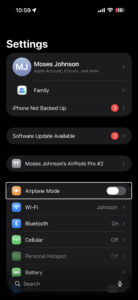
Turn Airplane Mode On And Off
One of the most common reasons a call fails on your iPhone is because of a glitch with your cellular connection. You can fix this by turning Airplane mode on and off.
- Go to Settings.
- Turn on Airplane Mode.
- Wait five seconds.
- Turn off Airplane Mode.
Enable Wi-Fi Calling
If calls keep failing, go to Settings > Apps > Phone > Wi-Fi Calling and turn on Wi-Fi Calling on This iPhone.
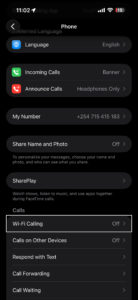
Wi-Fi Calling sounds like a minor setting, but it’s one of the more reliable fixes for this specific problem. Not all carriers support it. Check with your provider if the toggle isn’t showing — some require you to call in and activate it on your account before it appears (which is more common than you’d think).
Wi-Fi Calling routes calls through your internet connection instead of the cellular network. In weak-signal spots — basement apartments, thick-walled buildings, rural stretches with spotty LTE — this is often the only fix that works.
Try moving your location
It’s possible that you’re in a location that has poor service — good enough that your phone thinks it has cellular service, and you’ll see a bar or two of signal strength at the top of your phone — but bad enough that it can’t actually complete a connection. Try to make a call in another location. If you’re indoors, go outside, or otherwise try to change your location and make a call.
Turn Off Do Not Disturb
If you’re having trouble receiving calls rather than making them, go to Settings > Focus > Do Not Disturb and make sure it’s switched off. It’s easy to miss. Long-pressing the crescent moon icon in Control Center — or even just an accidental swipe through that menu — is all it takes to switch it on without realizing it.
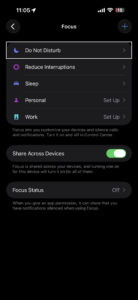
Do Not Disturb silences incoming calls (it’s the feature’s entire purpose), and from the caller’s side that’s completely indistinguishable from a call failure.
Turn Off Call Forwarding
Turn off call forwarding by going to Settings > Apps > Phone > Call Forwarding. It’s worth a look. If it’s on and pointing to a number that’s unreachable, disconnected, or just no longer active, your iPhone will route every single call there first — and fail every time without any explanation.
Call forwarding is one of those settings most people never touch (some people don’t even know it exists), which means it can be on for months without anyone realizing.
Restart your iPhone
The next step you can take if your iPhone call failed is to restart your device. Restarting your iPhone can fix a variety of small issues by allowing of its programs to shut down naturally. Simply turn your iPhone off, wait a minute, and then turn it back on again.
If a standard restart doesn’t help, try a force restart: press and release Volume Up, press and release Volume Down, then press and hold the Side button until the Apple logo appears. This clears more from memory than a standard restart and can sometimes fix connection issues that a normal shutdown won’t.
Check For A Carrier Settings Update
Carrier settings updates can help improve the connection between your iPhone and wireless carrier’s network. It’s a good idea to immediately update the carrier settings when an update becomes available.
You’ll typically receive a pop-up on your iPhone when a carrier settings update is available. Tap Update if you see that notification.
You can manually check for a carrier settings update by connecting your device to the internet and following these steps:
- Go to Settings.
- Tap General.
- Tap About.
- A pop-up will appear if a carrier settings update is available. Tap Update if it does.
- If no pop-up appears, move onto the next step.
Check For An iOS Update
Apple routinely releases iOS updates to fix known bugs and occasionally introduce new features. We recommend installing new iOS updates and see if that will fix your problem.
- Go to Settings.
- Tap General.
- Tap Software Update.
- Tap Update Now if an update is available.
Eject And Reinsert The SIM Card
If your iPhone has a physical SIM card, there’s a chance that there’s a problem with the way the SIM card is seated in its tray, and the phone can have trouble reading all the contacts on the card. Ejecting and reseating the SIM card can help fix this problem.
As long as you are careful, it’s not hard to eject the SIM card from your iPhone. Switch off your phone first. Then, use the SIM ejector tool to push into the hole beside the SIM tray to release it. Take out the SIM card and check for damages before putting it back in properly.
If your iPhone is an iPhone 14 or later bought in the United States, there’s no physical SIM card slot — it uses an eSIM embedded directly in the chip instead. Your carrier can sort out most eSIM issues remotely, so give them a call and ask them to check the status of your line.
Reset your network settings
If you’ve tried everything else and your iPhone can’t complete any phone calls due to the Call Failed error, we recommend that you reset your phone’s network settings.
Save this as a last resort, because this troubleshooting step will erase all your network settings. This means you’ll have to reenter your Wi-Fi passwords and reconfigure any virtual private networks on your iPhone. It’s a little bit of an inconvenience, but it can fix the problem when calls fail on your iPhone.
- Go to Settings.
- Tap General.
- Tap Transfer or Reset iPhone.
- Tap Reset.
- In the pop-up menu, select Reset Network Settings.
- Enter your iPhone’s Passcode.
- Select Reset Network Settings to confirm your decision.
Contact your carrier
Before you call, check whether your carrier is experiencing a service outage in your area — most carriers have a status page on their website and an outage checker built into their app. If there is an outage, there’s not much anyone can do until the carrier resolves it on their end.
If resetting network settings didn’t work, it’s time to contact your wireless carrier for assistance. Since calls are failing, you might need to visit the carrier’s store. There might be an issue with your account only a customer support representative can resolve.
iPhone Call Failed Problem: Fixed!
If your carrier comes up empty and calls are still failing on your iPhone, contact Apple Support. You can reach them at apple.com/support, by phone (the Apple Support app makes this especially easy), or by booking a Genius Bar appointment at your nearest Apple Store. Getting a diagnosis costs nothing. Should Apple’s diagnostics find a problem with your iPhone’s cellular radio, they can arrange a repair or replacement — not the most common outcome here, but worth knowing you have that option.
You’ve fixed the problem and your iPhone calls aren’t failing anymore. Share this article on social media to teach your friends and family what to do if calls fail on their iPhone. Thanks for reading.