Seeing the dreaded No Internet connection on your iPhone? We’ll show you the steps to follow when you have no internet access but are still connected to Wi-Fi on iPhone.
- Check if the problem affects all your devices or just your iPhone
- Restart your iPhone, then restart your router and modem
- Toggle Airplane Mode on and off to refresh your wireless connections
- Update your iPhone to the latest version of iOS
- Disable any active VPN connections
- Forget the Wi-Fi network and reconnect with your password
- Turn off Wi-Fi Assist in your Cellular settings
- Switch your DNS settings to Google or Cloudflare
- Reset your network settings as a last resort
Sometimes your iPhone will say it’s connected to Wi-Fi, but a “No Internet Connection” message appears below the name of your network. If your iPhone is experiencing this problem, this article explains the steps to fix it.
Why is my iPhone saying no internet connection?
Before we proceed, we should explain what’s happening on your network when your iPhone is connected to Wi-Fi but says “No Internet Connection.” This requires knowledge of some home networking basics.
Wireless devices, like an iPhone, connect to your router. The router is a device that manages the network connections for the devices in your home. Your router plugs into a modem, a device that bridges the traffic on your home network to the wider internet.
When your iPhone says “No Internet Connection,” it means that your iPhone is connected to the router correctly, but can’t reach the internet.
This gives you some clues about the issue, as we explain below.
Fix Wi-Fi Connected But No Internet Access On iPhone
1. Confirm Other Devices Can’t Connect Either
Before you do any troubleshooting, it’s important to determine whether your iPhone is the only device with no internet connection. Grab your computer (or another device connected to your Wi-Fi network) and see if it’s online—try streaming a YouTube video to check.
On some Android versions, this problem is indicated by an X icon over the Wi-Fi symbol in your status bar (you’ll be connected to your mobile network for data). iPhone and iPad users can visit Settings > Wi-Fi and check for a “No Internet Connection” message under your network name.
If your iPhone won’t connect but other devices will, this is likely due to a misconfigured setting on your iPhone. But if you have no internet on every device, the problem lies with your Wi-Fi router and you can thus skip some of the iPhone-only steps below, as noted.
2. Reboot Your iPhone
This step isn’t necessary if your connection issue is affecting multiple devices.
As with many issues, rebooting your iPhone is the first troubleshooting step you should try. If you’re lucky, you might clear up any temporary bug by restarting, which will fix your iPhone network connection issue.
To reboot your iPhone, simultaneously press and hold the Side button and either Volume button. Drag the Slide to Power off slider from left to right to shut down your iPhone.
Wait a few seconds, then turn your iPhone on again by pressing and holding the Side button until the Apple logo appears on the screen.
3. Toggle Airplane Mode
Open Settings and tap the Airplane Mode toggle to turn it on, wait about 15 seconds, then tap the toggle again to turn it off. When Airplane Mode is enabled, your iPhone kills all wireless connections at once — Wi-Fi, Bluetooth, and cellular — and turning it back off forces your iPhone to reconnect to everything from scratch.
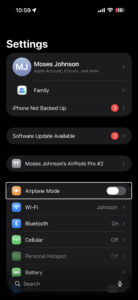
This works differently from toggling Wi-Fi on its own, because Airplane Mode clears the entire wireless stack rather than just one connection. If your iPhone had grabbed a bad network configuration or got stuck in a half-connected state (which is a lot more common than you’d think), this one toggle can shake it loose. You can also do this from Control Center by swiping down from the top-right corner and tapping the airplane icon, but using the Settings app is more reliable because Control Center sometimes leaves Wi-Fi on even in Airplane Mode.
4. Reboot Your Modem and Router
Since most network issues involve your modem and router, rebooting them is a wise early step. While some routers offer the option to reboot through their web interface, you don’t need to do this. Pull the power plug from both devices and leave them unplugged for a few minutes—or use the physical power button if there is one.
Power up the modem again first, letting it fully boot up before you plug in your router again. Wait a few minutes to make sure both are running. While doing this, confirm that your router and modem are working properly. If you don’t see any lights on one of the devices, or the lights appear red or flash in an irregular pattern, you may have a bad piece of network hardware.
If your iPhone says “No Internet Connection” even after this, continue—your issue is more complex than a basic reboot.
If your router broadcasts separate 2.4GHz and 5GHz networks, try connecting to the other one. A 5GHz connection is faster but weaker through walls, so if you’re far from the router, switching to 2.4GHz might give you a more stable connection. You’ll see both network names listed under Settings > Wi-Fi — they often have a suffix like “-5G” or “-2.4G” to tell them apart.
5. Check Your Date and Time Settings
Please make sure that the date and time on your iPhone are set correctly. Go to Settings > General > Date & Time. Turn on the toggle next to Set Automatically.
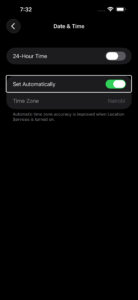
If the date and time on your iPhone are wrong — even by a few hours — it can cause SSL certificate validation to fail, which means your iPhone won’t be able to establish a secure connection to most websites and services. That’s why you’ll see “No Internet Connection” even though your Wi-Fi link to the router is perfectly fine. The problem tends to show up after a factory reset or after your iPhone’s battery has fully drained and been recharged.
6. Update Your iPhone Software
Go to Settings > General > Software Update and check whether a new version of iOS is available for your iPhone. If there is one, tap Download and Install.
iOS updates sometimes include fixes for Wi-Fi bugs that Apple introduced in a previous release, and this particular “No Internet Connection” issue has shown up repeatedly after certain updates — iOS 16.4, iOS 17.1, and iOS 18.5 all had reports flooding Apple’s support forums. If you can’t download the update over Wi-Fi (because, well, you have no internet), you can connect your iPhone to a computer with a USB cable and update through Finder on a Mac or the Apple Devices app on a PC. It’s a bit of a pain, but it’s worth checking off the list before moving on to more disruptive fixes.
7. Disable Any VPN Connections
Using a VPN has benefits, but it also adds a layer to your internet connection setup. As a result, what you think is an issue with your home network connection could be a problem with your VPN. Sometimes a VPN will time out if you’re connected for too long, or you could be using an overloaded server that can’t handle your connection.
If you’re running a VPN, whether through an app, a manual connection on your iPhone, or on your router, disable it and try to get online again. If the VPN is an app, just turn it off from within, but if it’s in the Settings app, follow the steps below:
Go to Settings > General > VPN & Device Management. Turn off the toggle next to Status at the top, changing it from Connected to Not Connected.
If that doesn’t fix it, keep the VPN turned off for the rest of your troubleshooting to reduce the number of variables.
If you don’t use a VPN on purpose, check this setting anyway. Some users on Apple’s forums have reported that a VPN profile left over from a deleted app — or from a work configuration — can silently interfere with your connection. You might see the VPN & Device Management toggle flickering on and off on its own, which is a dead giveaway. If there’s a VPN profile listed that you don’t recognize, tap the i icon next to it and tap Delete VPN.
8. Forget Your Wi-Fi Network And Reconnect
To forget a Wi-Fi network on your iPhone, open Settings and tap Wi-Fi. Then, tap on the information button (look for the blue i) to the right of the Wi-Fi network you want your iPhone to forget. Then, tap Forget This Network.
After forgetting the network, you can go back to Settings > Wi-Fi and tap on the network name again to reconnect. You’ll also have to reenter the Wi-Fi network’s password after forgetting it on your iPhone.
While you’re in the Wi-Fi settings for your network, check the Private Wi-Fi Address setting too. Since iOS 18, this is no longer a simple on/off switch — tap Private Wi-Fi Address and you’ll see three options: Off, Fixed, or Rotating. On most home networks with WPA2 or stronger security, iPhone defaults to Fixed. Try setting it to Off, then tap Rejoin when your iPhone asks. If that clears the “No Internet Connection” message, your router was having trouble with the randomized address, not your iPhone.
9. Disable Wi-Fi Assist
Go to Settings > Cellular, scroll all the way to the bottom of the screen, and turn off the toggle for Wi-Fi Assist.
Wi-Fi Assist is an iOS feature that automatically switches your iPhone over to cellular data when your Wi-Fi signal is weak, and Apple enables it by default. The problem is that when it kicks in while your Wi-Fi is technically connected but not passing traffic, your iPhone can get stuck bouncing between the two — it sees Wi-Fi, tries to use it, fails, switches to cellular, detects Wi-Fi again, and loops back. Turning it off forces your iPhone to commit to the Wi-Fi connection entirely, which makes it easier to tell whether the issue is actually with your Wi-Fi or somewhere else. You can always turn it back on once everything’s working again.
10. Change Your DNS Settings
Tap the information button (the blue i) next to your connected Wi-Fi network in Settings > Wi-Fi, scroll down and tap Configure DNS, switch it from Automatic to Manual, and enter 8.8.8.8 and 8.8.4.4 (Google’s DNS servers) or 1.1.1.1 and 1.0.0.1 (Cloudflare’s). Delete any existing DNS entries by tapping the red minus icon next to them.
DNS is what translates a website name like “apple.com” into the actual numerical address your iPhone needs to connect. Your router normally hands your iPhone the DNS servers from your internet provider, but if those servers are slow or temporarily down, your iPhone will act like it has no internet even though the connection itself is working. Switching to Google’s or Cloudflare’s DNS servers routes those lookups through a different path entirely, and in my experience this fix is the one that catches people off guard — the Wi-Fi is fine, the router is fine, but the ISP’s DNS was the bottleneck the whole time.
While you’re on that same Wi-Fi settings screen, you can also try forgetting the network and rejoining it, which forces your iPhone to request a fresh IP address from your router. (In older versions of iOS, there was a Renew Lease button that did this without forgetting the network, but Apple removed it back in iOS 15.) Grabbing a new IP can fix the problem if your iPhone was assigned an address that conflicts with another device on the network.
11. Check Your ISP’s Status
If you still can’t get any devices online, it’s worth checking if your internet service provider (ISP) is having an issue. Maybe the internet is down in your area. Though this is rare, it could explain why you have no internet access across devices. Contact your Internet service provider. It’s also possible your account has issues. Maybe you forgot to pay your bill and they disconnected your Internet. Simply contact them.
12. Reset Your Network Settings
If you’ve proceeded through all these steps and still have the “no internet access but connected” problem on your iPhone, there’s not much you can do other than reset your network settings.
If your iPhone is the only device you can’t connect with, you can reset its network settings by going to Settings > General > Transfer or Reset iPhone. Tap Reset, then Reset Network Settings.
This step resets Wi-Fi networks and passwords, cellular settings, and VPN and APN settings that you’ve used before. You’ll have to set everything up again, including VPN software, but it might be the fix you need.
If you’ve tried every fix on this list and your iPhone still says “No Internet Connection,” the next step is to contact your internet service provider and ask them to check for issues on their end — outages, account flags, and modem configuration problems are all things they can diagnose remotely and you can’t from your iPhone. If your ISP confirms everything is normal on their side, then it’s time to contact Apple Support or book an appointment at an Apple Store. There’s a small chance the Wi-Fi antenna in your iPhone has a hardware fault, and that’s something only Apple’s diagnostics can confirm. Whatever you do, don’t skip the ISP call and go straight to Apple — most of the time when nothing in this article works, the problem turns out to be on the provider’s end.