Counterfeit iPad Pros have plagued the market, but you can still identify them. In this article, I’ll explain how to spot a fake iPad Pro.
KEY TAKEAWAYS
- The easiest way to spot a fake iPad Pro is to enter the device’ serial number into Apple’s Check Coverage website. If the website says it’s unable to check coverage for the serial number you’ve entered, it probably means the iPad Pro is fake.
- Pay attention to the details on the box, and if you notice spelling mistakes, double spaces, printing issues, and pixelation in photos, the iPad Pro isn’t genuine.
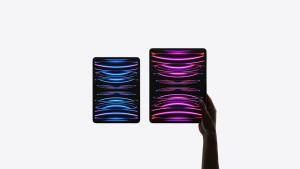
Apple iPad Pros command a premium price, making them attractive to counterfeiters. Just like fake iPad Air, bogus iPad Pros aren’t always so obvious. Sometimes they appear in seemingly legit online ads or real-world stores. Regardless of where they appear, they’re out there, and the people who buy them are being ripped off.
So how can you ensure that the iPad Pro is legitimate? There are a few ways you can check whether or not the iPad Pro is real.
If you can, get an Apple Genius to verify the product. This is the most reliable and foolproof method of confirming whether a product is a fake, but clearly it will generally be the most difficult to achieve.
Some of the time you simply won’t be able to get the product into an Apple Store – you’re stuck at the home or business premises of the person who’s selling you the device – and it’s also possible that the Apple employee will refuse to help out; after all, you’re buying second hand and effectively choosing not to give Apple any revenue. Be charming and they may help out, but keep in mind that they’re not obliged to do so.
Having said that, i’ve spent years using various iPad Pros for both entertainment and work and have tested all of the current and recent models to know how to distinguish original from fakes.
Here are some tips for figuring out if that iPad Pro you are about to purchase is real or fake:
Best Ways to Spot a Fake iPad Pro
How to Spot Fake iPad Pro: Packaging, Manufacturing, and More
Let’s assume you’ve got the possibly fake iPad Pro in your hand. Here are some things to check before you hand over the money. We can’t be certain it’s legitimate – it could just be a fantastic counterfeit – but these will rule out 95 percent of fakes.
- Packaging: Pay attention to the details on the iPad Pro box, checking for any spelling errors, variations in Apple’s font and colour schemes, or inaccurately printed details. If you spot any mistake, it’s a bogus iPad Pro.
-
Request Multiple Retail Boxes: If feasible, ask the shop or store owner to present at least two additional retail boxes and perform a side-by-side comparison to detect any discrepancies or irregularities.
-
Verify IMEI and Serial Numbers: For an added layer of security, consider unboxing the iPad Pro in the presence of the seller immediately after purchase. Check whether the data printed on the back of the device (such as serial number and IMEI) matches what’s printed on the box.
-
Build Quality: Apple is famous for the very high quality of its devices. The ports and connectors are tight and sturdy, and the color of the device is clean and bright. If the tablet seem a little low quality, the parts are loose, or the color isn’t perfect, you might be dealing with a knock-off iPad Pro.
-
Look for a memory card slot: The iPad Pro does not feature a MicroSD card slot, nor any kind of memory card slot. If the tablet has a slot for any size memory card, it’s likely an Android that has been reworked to look like an iPad Pro.
-
Price: Apple products aren’t cheap. The starting retail price for the latest iPad Pro with 11 inch display is $759, while the the starting price for the latest iPad Pro with 12.9 inch display is $1099. If you are sold the iPad Pro for much less than that, it might not be real.
How to know if iPad Pro is Fake: Check The Key Features
Another way of spotting fake iPad Pro is by checking if they’re missing a feature or specification that should be available. Here are all iPad Pro models and their key features:
iPad Pro 12.9-inch (6th generation)
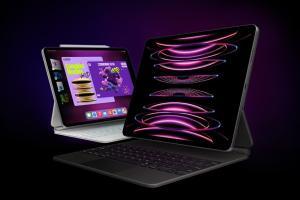
- Capacity: 128 GB, 256 GB, 512 GB, 1 TB, 2 TB
- Colors: Silver and Space Gray.
- Model number (on the back cover):
A2436 on iPad Pro 12.9-inch (6th generation)
A2437 on iPad Pro 12.9-inch (6th generation) Wi-Fi Cellular
A2764 on iPad Pro 12.9-inch (6th generation) Wi-Fi Cellular with mmWave
A2766 on iPad Pro 12.9-inch (6th generation) Wi-Fi Cellular (China mainland only) - USB-C charging port
- The nano-SIM tray is on the right side on iPad Pro Wi-Fi Cellular
- Face ID sensor
iPad Pro 11-inch (4th generation)
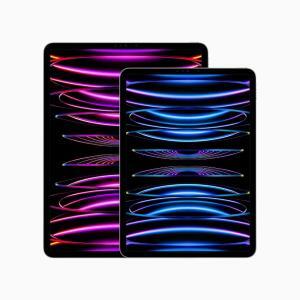
- Capacity: 128 GB, 256 GB, 512 GB, 1 TB, 2 TB
- Colors: Silver and Space Gray.
- Model number (on the back cover):
A2759 on iPad Pro 11-inch (4th generation)
A2761 on iPad Pro 11-inch (4th generation) Wi-Fi Cellular
A2435 on iPad Pro 11-inch (4th generation) Wi-Fi Cellular with mmWave
A2762 on iPad Pro 11-inch (4th generation) Wi-Fi Cellular (China mainland only) - USB-C charging port
- The nano-SIM tray is on the right side on iPad Pro Wi-Fi Cellular
- Face ID sensor
iPad Pro 12.9-inch (5th generation)

- Capacity: 128 GB, 256 GB, 512 GB, 1 TB, 2 TB
- Colors: Silver and Space Gray.
- Model number (on the back cover):
A2378 on the iPad Pro
A2461 on the iPad Pro Wi-Fi Cellular
A2379 on the iPad Pro Wi-Fi Cellular with mmWave - A2462 on the iPad Pro Wi-Fi Cellular (China mainland only)
- USB-C charging port
- The nano-SIM tray is on the right side on iPad Pro Wi-Fi Cellular
- Face ID sensor
iPad Pro 11-inch (3rd generation)
- Capacity: 128 GB, 256 GB, 512 GB, 1 TB, 2 TB
- Colors: Silver and Space Gray.
- Model number (on the back cover):
A2377 on the iPad Pro
A2459 on the iPad Pro Wi-Fi Cellular
A2301 on the iPad Pro Wi-Fi Cellular with mmWave
A2460 on the iPad Pro Wi-Fi Cellular (China mainland only) - USB-C charging port
- The nano-SIM tray is on the right side on iPad Pro Wi-Fi Cellular
- Face ID sensor
iPad Pro 12.9-inch (4th generation)
- Capacity: 128 GB, 256 GB, 512 GB, 1 TB
- Colors: Silver and Space Gray.
- Model number (on the back cover):
A2229 on the iPad Pro
A2069, A2232 on the iPad Pro Wi-Fi Cellular
A2233 on the iPad Pro Wi-Fi Cellular (China mainland only) - USB-C charging port
- The nano-SIM tray is on the right side on iPad Pro Wi-Fi Cellular
- Face ID sensor
iPad Pro 11-inch (2nd generation)
- Capacity: 128 GB, 256 GB, 512 GB, 1 TB
- Colors: Silver and Space Gray.
- Model number (on the back cover):
A2228 on the iPad Pro
A2068, A2230 on the iPad Pro Wi-Fi Cellular
A2231 on the iPad Pro Wi-Fi Cellular (China mainland only) - USB-C charging port
- The nano-SIM tray is on the right side on iPad Pro Wi-Fi Cellular
- Face ID sensor
iPad Pro 12.9-inch (3rd generation)
- Capacity: 64 GB, 256 GB, 512 GB, 1 TB
- Colors: Silver and Space Gray.
- Model number (on the back cover):
A1876 on the iPad Pro
A2014, A1895 on the iPad Pro Wi-Fi Cellular
A1983 on the iPad Pro Wi-Fi Cellular (China mainland only) - USB-C charging port
- The nano-SIM tray is on the right side on iPad Pro Wi-Fi Cellular
- Face ID sensor
iPad Pro 11-inch
- Capacity: 64 GB, 256 GB, 512 GB, 1 TB
- Colors: Silver and Space Gray.
- Model number (on the back cover):
A1980 on the iPad Pro
A2013, A1934 on the iPad Pro Wi-Fi Cellular
A1979 on the iPad Pro Wi-Fi Cellular (China mainland only) - USB-C charging port
- The nano-SIM tray is on the right side on iPad Pro Wi-Fi Cellular
- Face ID sensor
iPad Pro 12.9-inch (2nd generation)
- Capacity: 64 GB, 256 GB, 512 GB
- Colors: Silver, Gold and Space Gray.
- Model number (on the back cover):
A1670 on the iPad Pro
A1671 on the iPad Pro Wi-Fi Cellular
A1821 on the iPad Pro Wi-Fi Cellular (China mainland only) - Lightening connector
- The nano-SIM tray is on the right side on iPad Pro Wi-Fi Cellular
- Touch ID sensor in Home button
iPad Pro (10.5-inch)
- Capacity: 64 GB, 256 GB, 512 GB
- Colors: Silver, Rose Gold, Gold and Space Gray.
- Model number (on the back cover):
A1701 on the iPad Pro
A1709 on the iPad Pro Wi-Fi Cellular
A1852 on the iPad Pro Wi-Fi Cellular (China mainland only) - Lightening connector
- The nano-SIM tray is on the right side on iPad Pro Wi-Fi Cellular
- Touch ID sensor in Home button
iPad Pro (9.7-inch)
- Capacity: 32 GB, 128 GB, 256 GB
- Colors: Silver, Rose Gold, Gold and Space Gray.
- Model number (on the back cover):
A1673 on the iPad Pro
A1674 or A1675 on the iPad Pro Wi-Fi Cellular - Lightening connector
- The nano-SIM tray is on the right side on iPad Pro Wi-Fi Cellular
- Touch ID sensor in Home button
iPad Pro (12.9-inch)
- Capacity: 32 GB, 128 GB, 256 GB
- Colors: Silver, Gold and Space Gray.
- Model number (on the back cover):
A1584 on the iPad Pro
A1652 on the iPad Pro Wi-Fi Cellular - Lightening connector
- The nano-SIM tray is on the right side on iPad Pro Wi-Fi Cellular
- Touch ID sensor in Home button
How to Tell If iPad Pro is Fake: Check the Serial Number
The most foolproof way to tell if iPad Pro is fake is to enter its serial number into Apple’s warranty coverage tool, and, if you find it there, it’s the real deal. If you don’t, you’ve spotted a fake iPad Pro. Here’s what to do:
- Find the serial number for the iPad Pro:
- If the iPad Pro has been set up: open the Settings app and tap on General. Tap on About, then scroll down to find the serial number.
- If the iPad Pro hasn’t been set up: on the Hello screen, tap the (i) info button to see basic information about the iPad, including the serial number. You can also find the serial number for the iPad Pro on the back of the device.
- Open a web browser and go to Apple’s coverage checking tool.
- Enter the serial number in the text field provided.
- Complete the CAPTCHA and then click Continue.
- If the tool returns information for that serial number (especially a valid purchased date), the iPad Pro is real. If the tool says the serial number is in invalid, the iPad Pro is fake.
How to Know If iPad Pro is Real: power on the device and try it out
Some iPad Pro replicas can be really convincing. The cases can look very much like the genuine article, and so can the screens. Here’s what to do to be sure:
First, When you press and hold the power button, the Apple logo should appear on the screen. You should then see "Hello" in many languages. That means the iPad Pro is genuine.
But there’s another way to tell that’s more certain: check out the icons on the home screen: iPad Pro comes with a variety of pre-installed apps including Messages, FaceTime, Safari, Mail, Calendar, Photos, App Store, Photo Booth, and more. For example, if you see a Google Play app, it’s not an iPad Pro.
Check the Settings app for standard iPhone menus like Screen Time, Focus, Control Center, Siri & Search, and Wallet & Apple Pay.
Finally, try tapping the App Store icon; if it doesn’t go to Apple’s App Store, it’s not an iPad Pro.
Submit a comment