
• Skip to primary navigation
  • Skip to main content
  • Skip to primary sidebar
  • Skip to footer

iPhoneArena

APPLE IPHONE, MAC, WATCH AND IPAD

  • Home
  • iPhone
  • iPad
  • Mac
  • Apple Watch
  • Bug Fixes
  • How to
  • Tips and Tricks
  • Apps
You are here: Home / Archives for How to

How to

This section is dedicated to helping you use and make the most out of your Apple products. iPhone, iPad, Mac, Apple Watch---if it can make your life better, we'll show you all the techniques you need to know to get the most out of what you have.

How to Calibrate iPhone Battery: Step-by-Step

By Dave Johnson · March 27, 2026

Here’s how to calibrate your iPhone battery and why it’s worth doing every so often. The benefits could surprise you!

Poor battery life is a common complaint among smartphone owners. It doesn’t matter whether you’re an iPhone or Android user; if you use your phone a lot during the day, the battery will be lucky to make it to sundown.

However, did you know that something as simple as calibrating your iPhone battery can help? Let’s take a closer look at how to calibrate an iPhone battery and why calibration is important. Once you do this, your iPhone can last longer and be ready when you need it.

Why You Should Calibrate Your iPhone Battery

Calibrating your iPhone’s battery (also referred to as resetting an iPhone’s battery) is a surprisingly important part of iPhone maintenance. Unfortunately, many people don’t realize its benefits, and even fewer take the time to perform the necessary steps.

Without a correctly calibrated battery, you’re likely to experience inaccurate and erratic battery percentage readings, quicker battery drain, and a shorter total lifespan for your battery. If your iPhone shuts down unexpectedly when your battery life percentage hits single digits, poor calibration is almost certainly to blame.

Many factors can cause a battery to become incorrectly calibrated. Software updates, background app refresh, new features, and even plain old day-to-day use can all cause discrepancies. And even if you haven’t noticed an incorrect calibration, performing the steps below will ensure all the ions in the battery are flowing, thus improving the battery’s peak performance.

While you shouldn’t need to calibrate regularly, it’s worth a try if you’ve had battery issues that other steps didn’t resolve.

If you do want to set a schedule, once every two to three months is a reasonable cadence for most people. You can also try it after a major iOS update if you notice your battery percentage behaving strangely — jumping from 40% to 15% in a matter of minutes, for instance, or dying at 20% when it used to last well into single digits.

One thing worth knowing: if you have an iPhone 11, iPhone 11 Pro, or iPhone 11 Pro Max running iOS 14.5 or later, Apple built in an automatic recalibration system for the battery health reporting on those specific models. You can check its status by going to Settings > Battery > Battery Health & Charging, where you’ll see a message if recalibration is still in progress. That automatic process can take a few weeks and runs during normal charge cycles, so there’s no need to do a manual calibration while it’s active.

Check Your Battery Health First

Go to Settings > Battery > Battery Health & Charging (on iPhone 14 or earlier) or Settings > Battery > Battery Health (on iPhone 15 or later) and look at the Maximum Capacity percentage. This number tells you how much charge your battery can hold compared to when it was brand new.

If that number is at or below 80%, calibration won’t do much for you — your battery has physically degraded to the point where it can’t hold the charge it once did, and no amount of drain-and-recharge cycling is going to fix that. Apple considers 80% the threshold where a battery should be serviced, and you’ll often see a “Service” message appear at that point. On iPhone 15 and later, you can also see your battery’s cycle count right on that same screen, which gives you a clearer picture of how hard the battery has been used. If you’re well above 80%, though, a calibration can absolutely help get the software’s reading back in sync with the battery’s actual capacity, and that’s when the steps below are worth your time.

Preparing to Calibrate Your iPhone Battery

Before starting the calibration process, you should take a few steps in preparation. They all revolve around disabling features and services, so as few tasks as possible draw power.

This will help lead to an accurate reading later in the process. After you’ve reset the battery, you can re-enable all of these options. It’s also worth ensuring you haven’t accidentally enabled Low Power Mode by going to Settings > Battery.

Disable Location Services

To disable location services on your iPhone, follow these steps:

  1. Open the Settings app on your iPhone.
  2. Scroll down and tap on Privacy & Security.
  3. Tap Location Services at the top.
  4. Now, toggle off Location Services.

Remember, you can use Location Services to track a lost iPhone, so make sure you don’t forget to re-enable this after you’re done calibrating.

Disable Background Refresh

Follow the instructions below to turn off the background app refresh feature on your iPhone:

  1. Open the Settings app and tap General.
  2. Tap Background App Refresh.
  3. Tap on Background App Refresh a second time.
  4. Choose the Off option.

Lower Your Screen Brightness

Here’s how to lower the screen brightness on an iPhone:

  1. Open the Settings app.
  2. Scroll down and select Display & Brightness.
  3. Drag the Brightness slider all the way to the left.

Turn Off Automatic App Updates

Finally, to turn off automatic updates, follow these steps:

  1. Open the Settings app.
  2. Scroll down and tap on Apps.
  3. Tap on App Store.
  4. Under Automatic Downloads, toggle off App Updates.

Disable Optimized Battery Charging or Charge Limit

Go to Settings > Battery > Battery Health & Charging (iPhone 14 or earlier) or Settings > Battery > Charging (iPhone 15 or later) and temporarily disable your charging optimization. If you’re on an iPhone 15 or later, set the charge limit to 100% and turn off Optimized Battery Charging. If you’re on an iPhone 14 or earlier, toggle off Optimized Battery Charging.

This matters because Optimized Battery Charging is designed to pause at 80% and finish later based on your daily routine — which is great for everyday use, but it fights against what you’re trying to accomplish here. You need a full, uninterrupted charge from 0% to a true 100%, and that feature will get in the way. On iPhone 15 and later, if you’ve set a charge limit (say 80% or 85%), that will also prevent the battery from reaching a full charge during calibration. Set it to 100% for now. You can turn it back on when you’re done — and you should, because these features genuinely help your battery last longer over months and years of use.

How to Calibrate Your iPhone Battery

Now, you’re ready to calibrate the battery on your iPhone. Be warned that it takes quite a bit of patience; you’ll need to wait around for a couple of complete charge and drain cycles to finish.

Luckily, you don’t need any third-party tools or apps. Anything you see in the App Store promising to reset your iPhone’s battery is, at best, unnecessary and, at worst, a scam. iPhone battery calibration is easy to perform without extra help.

Step 1: Drain Your iPhone’s Battery

The first step is to completely drain your iPhone battery. You can do so during normal usage. If you want to speed up the process, you can play a long video on YouTube with the volume turned up to the maximum level.

Try to keep your iPhone in a room-temperature environment while you’re draining it. Running the battery down while the phone is sitting in direct sunlight, on a car dashboard, or on a wireless charger that generates heat can stress the battery in ways that go beyond what calibration is meant to do.

Step 2: Wait Three Hours

You may have noticed that your iPhone will automatically shut down even if the battery has a small percentage left. This process is by design; it gives the device a chance to save the current state of your apps so you don’t lose data.

It’s important to let the last embers of the battery life die away. The only way to do this is to wait. The longer you wait, the better, but you should wait at least three hours. If you have time, letting it sit overnight is preferable.

If you’re worried about damaging the battery by letting it sit dead for hours, there’s a built-in safeguard worth knowing about. When your iPhone shuts down at “0%,” it isn’t actually at zero — Apple reserves a small buffer of charge specifically to protect the battery from going completely flat, which is something lithium-ion batteries really don’t tolerate well. That reserve is there so the phone can sit powered off for a while without any real harm. Three to five hours is fine. Leaving it off for days or weeks, on the other hand, is not something you want to do.

Step 3: Charge Your iPhone

Now, it’s time to refill the battery. To ensure optimal performance, make sure you follow these tips:

  • Use a wall socket rather than a computer to charge.
  • Ideally, use an official Apple charger. At the very least, make sure you use a high-quality USB-C cable and not a cheap knockoff.
  • Continue to charge for a couple of hours even after your phone shows the battery as 100 percent full. You need to ensure you squeeze in every drop of power to ensure the calibration works correctly.

Try not to use your iPhone at all while it’s charging during this step. Scrolling through apps or answering messages creates small charge-and-discharge micro-cycles that can throw off the reading you’re trying to establish. Plug it in, walk away, and let it do its thing.

Step 4: Drain Your iPhone

Now, you need to repeat the whole process a second time. It’s the same drill as before: completely drain the power out of your device. Either use it as you normally would or play videos on loop to move it along faster.

Step 5: Wait Another Three Hours

It’s getting repetitive by now but stick with it. Once again, you need to ensure you drain that last bit of battery power from your iPhone. Like before, the longer you can leave it, the better.

Step 6: Charge Your iPhone Again

To finish the process, you need to recharge your device. Follow the same guidelines as earlier, ensuring you let your phone continue charging for a couple of hours even after it’s full.

See also: Are YOU charging your iPhone correctly?

Finally, you need to re-enable the services and functions you disabled earlier. Turn Location Services, Background Refresh, and Automatic Updates back on and turn the screen brightness back up.

Don’t forget to turn Optimized Battery Charging (or your preferred charge limit) back on in Settings > Battery > Battery Health & Charging (iPhone 14 or earlier) or Settings > Battery > Charging (iPhone 15 or later). This is easy to overlook, and leaving it off means your battery will charge to 100% every single time, which over weeks and months adds unnecessary wear.

Once everything is re-enabled, do a quick restart of your iPhone to help the system fully register the new calibration data. On all iPhones running the current iOS — including iPhone SE models with a Home button — press and quickly release the Volume Up button, then press and quickly release Volume Down, then press and hold the Side button until you see the Apple logo.

And that’s it. Now, your iPhone battery has been recalibrated.

Other Battery-Saving iPhone Tips

Now that your battery is freshly calibrated, turn on Optimized Battery Charging if you haven’t already. Go to Settings > Battery > Battery Health & Charging (iPhone 14 or earlier) or Settings > Battery > Charging (iPhone 15 or later) and make sure it’s enabled. This feature learns your daily routine and delays charging past 80% until right before you typically pick up your phone — it’s one of the best things Apple has done for long-term battery health, and it works without you having to think about it. On iPhone 15 or later, you can also set a specific charge limit anywhere from 80% to 100% in 5% increments if you want even tighter control.

If recalibration hasn’t fixed your iPhone battery problems, it might be time to spend some money on a new battery. You can replace the battery yourself through Apple’s Self Service Repair program, which gives you access to genuine Apple parts, tools, and step-by-step manuals. Using genuine parts won’t void your warranty, though any damage you cause during the repair isn’t covered by Apple.

Therefore, it’s always better to make an Apple Store appointment at a Genius Bar and get it replaced with professional help. A new battery and the required labor aren’t as expensive as you might think.

If you’re still seeing strange battery behavior after calibrating and your Maximum Capacity is above 80%, the issue might be software-related rather than battery-related. A rogue app running in the background, a buggy iOS update, or even a corrupted system file can drain battery life in ways that look like a hardware problem but aren’t. Go to Settings > Battery and scroll down to check which apps have been using the most power over the previous day — you can also tap View All Battery Usage and select individual days going back about a week — sometimes the culprit is obvious once you look. If nothing stands out, contacting Apple Support directly (through the Support app or apple.com/support) is worth doing before you commit to a battery replacement, since they can run remote diagnostics that check things you can’t see on your own.
How to force restart your iPhone

By Stacey Butler · March 20, 2026

iPhones are pretty reliable, but sometimes issues may occur. Sometimes, your iPhone freezes, hangs, starts acting bizarrely or becomes unresponsive. When things do not work as expected, the last resort is to force your iPhone to restart.

Previously, I explained the different ways to turn your iPhone off and on. This article explains how you can force your iPhone to restart.

  • When Should You Force Restart?
  • How to Force Restart an iPhone
    • How to force restart an iPhone 8 or later, including iPhone SE (2nd and 3rd generation)
    • How to force restart an iPhone 7 or iPhone 7 Plus
    • How to force restart an iPhone 6s and earlier, including iPhone SE (1st generation)
  • Conclusion

When Should You Force Restart?

Now and then, your iPhone or iPad might suffer some form of a software glitch. It can be an iOS update gone wrong, a rogue app, or just an iOS bug that won’t go away.

Force restarting is most helpful when your iPhone is stuck and unresponsive. When you can’t even turn off your device, try force rebooting it—it usually fixes the issue.

How to Force Restart an iPhone

The process of force restarting an iPhone differs between phone models. While the process is different, the result is the same. Follow the steps for your device.

How to force restart an iPhone 8 or later, including iPhone SE (2nd and 3rd generation)

  1. Press and quickly release the volume up button.
  2. Press and quickly release the volume down button.
  3. Press and hold the side button.
  4. When the Apple logo appears, release the side button (this takes about 10 seconds).

How to force restart an iPhone 7 or iPhone 7 Plus

  1. Press and hold both the side button and the volume down button.
  2. When the Apple logo appears, release both buttons (this takes about 10 seconds).

How to force restart an iPhone 6s and earlier, including iPhone SE (1st generation)

  1. Press and hold both the Home button and the side button or the top button.
  2. When the Apple logo appears, release both buttons (this takes about 10 seconds).

Conclusion

Force Restarting an iPhone resolves many iOS issues. If your device won’t boot up, or if you’re experiencing a system-level bug, before taking a trip to the Genius Bar, see if a force restart will fix the issue.

How to clear cache on your iPhone

By Stacey Butler · March 20, 2026

This article explains how you can clear cache on your iPhone. The instructions in this guide will work on iPhone 17 series, iPhone 16 series, iPhone 15 series, iPhone 14 series, iPhone 13 series, and iPhone 12 series running the latest version of iOS 26.

Your iPhone’s web browser picks up a lot of files, images and data from the websites that you visit, and a lot of that does not need to be on your iPhone. Whether you’re using Safari, Google Chrome, or Mozilla Firefox, this data stored in your cookies and cache can be helpful in some cases. It’s what lets you quickly load websites you frequently access and keeps you logged into accounts you have. That’s great, but there’s plenty of information in the cookies and cache of your browser that isn’t necessary and could even be a privacy risk.

What is cache?

Cache — aka browser cache — refers to the temporary storage of certain data, including images, files, and scripts from websites you’ve visited. Such website content is stored — or cached — on your phone to help your browser execute faster the next time you visit that site.

Why Clear Cache on iPhone

Why should we clear the cache on the iPhone? Clearing cache on iPhone has many benefits. These include:

  • It will help you see the most recent webpage changes.
  • It may fix some Safari issues, such as Safari freezing.
  • It may speed up your iPhone.
  • It may help you free up storage space on your iPhone.

How to Clear Cache in Browser on iPhone

Web browsers temporarily stores Internet files (images, web site pages and files, etc.) when you visit websites to reduce server lag so that you can view the websites faster in the future. In short, these cache files are useful in faster loading of the web pages.

Whether you use Chrome, Safari or other browsers on your iPhone, your cache builds up that digital clutter over time. Clearing your cache gives the browser a new start, which can speed up your web surfing, even on iOS 17 or the latest iOS 18.

Here are step-by-step instructions on how to clear your cache on your iPhone based on the browser you use.

Clear Cache in Safari on iPhone

Safari is the default browser on iPhones, and you can clear your Safari cache in a few easy steps. Starting with iOS 11, following this process will affect all devices signed in to your iCloud account. As a result, all your devices’ caches will be cleared, and you’ll need to sign in to everything the next time you use them. Here’s what to do.

  1. On your iPhone, go to Settings > Apps > Safari.
  2. Tap on Clear History and Website Data.
  3. Tap on Clear History to confirm.

Clear Cache in Chrome on iPhone

Chrome is another popular browser for iPhone users. Thankfully, Google makes it easy to clear your Chrome cache, making it much faster to clear your data.

  1. On your iPhone, open Chrome.
  2. Tap on More button.
  3. Tap on Settings.
  4. Tap on Privacy and Security.
  5. Tap on Delete Browsing Data. Another menu will open up. Select the intended time range at the top of the menu (anywhere from Last Hour to All Time). Make sure that Cookies, Site Data is checked, along with Cached Images and Files.
  6. Tap on Delete Browsing Data.
  7. In the popup window, tap on Delete Browsing Data to confirm.
  8. Tap Done when you’ve deleted the Chrome cache.

Clear Cache in Firefox on iPhone

If you’re a Firefox user, we got you covered. Clearing the cache on your iPhone is pretty easy. Just follow these steps.

  1. On your iPhone, open Firefox.
  2. At the bottom-right of the screen, tap on the menu button.
  3. Tap on Settings at the bottom of the menu.
  4. Tap on Data Management under the Privacy section.
  5. You can select Website Data to clear data for individual sites, or select Clear Private Data at the bottom of the screen to clear data from all selected fields.

Clear App Cache on iPhone

Restart iPhone to Clear Cache

  • If your iPhone has a Face ID:
    • Press and hold either volume button and the side button until you see the power-off slider.
    • Drag the slider, then wait 30 seconds for your phone to turn off fully.
    • To turn your phone back on, press and hold the side button (on the right side of your iPhone) until you see the Apple logo.
  • If your iPhone has a Home button:
    • Press and hold the side button until you see the power-off slider.
    • Drag the slider, then wait 30 seconds for your phone to turn off.
    • To turn your phone back on, press and hold the side button until you see the Apple logo.

Reset iPhone to Clear Cache

Factory reset your iPhone to clear its cache. Open the Settings app. Then tap on General > Transfer or Reset iPhone > Erase All Content and Settings and confirm your decision. You’ll be asked to enter your passcode, followed by your Apple Account password to turn off Apple’s Find My service.

After entering your password, the screen will go dark and the Apple logo along with a progress bar will show up. A few minutes later, you’ll be greeted with a screen with “Hello” in different languages flashing on it, indicating the reset was a success. This will also clear your iPhone cache.

How to Backup Important Data before Clearing the Cache

Before you clear cache on your iPhone, create a backup that you can use to restore your data. You can use iCloud to back up your phone by going to Settings > Apple Account > iCloud > iCloud Backup > Back up now. This backup method can take a while, depending on how long it’s been since you’ve backed up your phone, but it’s pretty easy.

Just make sure to keep your phone connected to a Wi-Fi network and on a charger to prevent the backup from draining the battery.

How to Access Website without Leaving the Cache

If you’re learning how to clear the cache on an iPhone, you might wonder if there’s a way to use Safari without leaving cache. Yes! To visit sites without leaving cache, simply turn Private Browsing on.

Enable Private Browsing

  1. Launch Safari on your iPhone.
  2. Tap the Tabs button.
  3. Swipe to the Private tab group button, then tap the tab that you want to open.

Block Cookies

A cookie is a piece of data that a site puts on your device so that site can remember you when you visit again.
To block cookies:

  1. On your iPhone, go to Settings > Apps > Safari > Advanced.
  2. Turn on Block All Cookies.

There are also third-party extensions — such as Ghostery and Disconnect — that help you block cookies and trackers in Google Chrome.

If you block cookies, some websites might not work. The following are some examples:

  • You will likely not be able to sign in to a site even when using your correct username and password.
  • You might see a message that cookies are required or that your browser’s cookies are off.
  • Some features on a site might not work.

What happens when you clear iPhone cache?

Clearing your iPhone cache removes the website data your phone stored locally to prevent having to download that data upon each new visit. The data in your cache builds over time and can end up slowing things down if it becomes too bulky or out of date. (My phone had about 160MB of data stored in Chrome when I checked.) Clearing that data gives sites a fresh start, which may fix some loading errors and speed up your browser. Clearing your cache also signs you out of pages, so be prepared to sign in to everything again.

How often do I need to clear iPhone cache?

Most people only need to clear their iPhone cache once every month or two. That’s generally the point when your browser will build up a cache large enough to start slowing things down. If you frequent a large number of sites, you should err on the side of clearing your cache more often.

How to make your iPhone 17 battery last longer

By Dave Johnson · January 5, 2026

If you have regular access to an iPhone charger during the day and a healthy battery, you probably don’t need to worry much about extending your ‌iPhone 17 battery. For days when you’re away from home for long periods of time, though, you might need to take some steps to make sure you get the most out of your battery.


We’ve rounded up some tips that will help ensure your iPhone 17 battery lasts all day.


Turn Adaptive Power on

On iPhone 17, Apple offers a new Adaptive Power Mode that works alongside the existing Low Power Mode to intelligently extend your iPhone’s battery life. Unlike Low Power Mode’s heavy restrictions, this AI-powered feature makes subtle adjustments that you’re barely meant to notice.

When your battery usage runs higher than usual, Adaptive Power Mode automatically makes small performance tweaks to help your iPhone last longer. Apple says this includes slightly dimming the display brightness or allowing some tasks to “take a little longer” to complete.

The feature works in the background without the limitations of Low Power Mode, although the latter may still be activated if your device depletes to a 20% charge level.

The iPhone Air, iPhone 17, iPhone 17 Pro, and ‌iPhone 17 Pro‌ Max have the Adaptive Power option enabled by default. To check if the feature is enabled:

  1. Go to Settings.
  2. Tap Battery.
  3. Tap Power Mode.
  4. Turn Adaptive Power on.

Enable Low Power Mode

Just like other iPhone models, the iPhone 17 has a function called Low Power Mode, which allows you to operate your phone on an extremely low level of power consumption.

To access it, you would head to Settings, then Battery, then toggle Low Power Mode on.

Notice that low power mode is on, signified by your battery indicator turning yellow.

It’s worth pointing out though, that this mode is a tradeoff.

On the one hand, you get a significant increase in the duration of time that your iPhone will be able to operate.

But on the other, you’re going to lose much of the functionality of your iPhone.

Low power mode does things like disable 5G, reduce the screen brightness, limit the refresh rate on your phone, and disable features like background app refresh.

All of these are of course, ‘nice to haves’, but they’re also features that make your iPhone an iPhone. So whilst it’s definitely a feature that you could, and probably should be using when you really need it, I wouldn’t recommend overusing it.

What I hear some people doing, which I think could be a good idea, is enabling this if they know they’re going to be out and away from a charger for a really long time, to try and really squeeze every last bit of power from your device.

Turn on the Dark Mode feature

The iPhone 17 has an OLED display. Quite simply, on an OLED display, individual pixels are able to power on and off, which is why, on a phone with an OLED display, you can see that there’s no difference between the blacks that you see when the screen is disabled, and the blacks that are being used in images or videos.

Where this helps you out with battery life then, is in your ability to use Dark Mode. Head into Settings, then choose Display & Brightness, and choose Dark Mode.

With this enabled, whole sections of your screen are essentially now switched off to all intents, which should result in you being able to keep your iPhone 17 battery going for longer, albeit with a very different look and feel to your phone.

What I tend to do is enable automatic dark mode, where dark mode will come on later in the day, but remain off during the day, that’s just my personal preference, you of course can use this however you like.

Turn off the Always On feature

The iPhone 17 has the option of using it’s always-on display. This works by dimming the brightness of the display so that it’s still just visible when you’re not using it, and also reducing the frame rate to as low as one 1hz.

The point of always-on display is really to make use of live activities. So let’s say for example, that you’ve set a timer for while you’re cooking food, and you then put your phone down on the kitchen counter, the idea is that you can keep an eye on your timer without having to touch the phone. But to be honest nowadays, lots of us have Apple Watches and you could set a timer there, and if you use Siri you can just ask Siri how long you have left on your timer anyway. Timers aren’t the only use case here, but personally after many years of owning an iPhone, I don’t think that the always-on display is that great a feature, and it definitely does drain your battery to have it on, and so I would have to encourage you to at least consider making some changes here.

To do this, open Settings, then Display & Brightness. Scroll down to the Always On Display option, and tap into there.

One option here is to keep the always-on display toggled on, but disable wallpaper. Doing this means that you’ve essentially got a black background, with only the time and any widgets or live activities showing up at the top. Just the fact that you’re not having your OLED screen display wallpaper will save you some battery, and so if you want to try and get the best of both worlds, I’d definitely recommend trying this, but set your expectations for how much battery life you’re going to save here accordingly. Ultimately, the best way to save battery life is going to be to disable this feature altogether, so I would recommend that at the very least, have a think about whether you really get enough value from this feature, and consider turning it off.

Adjust your Auto-Lock settings

If you head into Settings, then Display & Brightness and scroll down, you’ll see an option called Auto Lock.

This is a function of your iPhone which automatically puts your phone into a lock mode after a certain period of inactivity, and you can choose from either Never, or a number of short durations of time.

In general, the shorter you make the time here, the more battery you’re likely to be able to save overall, as your phone will be quicker at going to Lock mode each time you put it down. But, lock mode can be extremely frustrating when it enables at a time when you don’t want it to, so I would absolutely recommend that you play around with this to find a time that suits both your use case, and your need for saving battery life.

Auto Brightness

Head into Settings, then Accessibility, then Display & Text Size, and right at the very bottom of this page you have an option called Auto Brightness.

This is a bit of an odd one. It does exactly what it sounds like, it will look to use the phone’s ambient light sensors to make a judgement call about when to boost your screen’s brightness, and when to reduce it. Apple have a disclaimer on the screen, but notice the wording here – it says that turning this off “may affect battery life”, it just doesn’t mention whether that’s in a positive or a negative way.

And I think that this is because for many people, auto brightness will absolutely help their battery life. If you work in an office or you’ve got your iPhone in a relatively controlled lighting environment much of the time, then allowing your phone to adapt to your surroundings and change the display is probably no bad thing. Where I think people come up against issues here, is if people are using their phones predominantly in very bright environments for much of the time, which is where the brightness would therefore be constantly pushed up high to compensate for this. Also, keep in mind that your iPhone will have to use a certain amount of battery to run the ambient light sensor, so your mileage will definitely vary with this one. My advice would be to try this out, see how you get on with it, if you see value in it, keep it going.

Also, do remember that if you enable this, and then decide that you don’t like it, chances are your brightness will be reduced, so as well as disabling it, you’ll want to head back into Control Centre, and manually change your brightness there.

Reduce White Point

If you head into Settings, then Accessibility, then Display & Text Size, and then scroll all the way down to the bottom of the page, there’s an option called Reduce White Point.

If you toggle this on, you’ll see a slider, which goes from 25% all the way up to 100%.

Essentially, what you’re doing here is reducing the intensity of bright colours on your screen, and in doing so, you’ll get a boost in your iPhone 17 battery life, albeit at the cost of less bright and vivid colours.

This is in Accessibility as it’s really designed more for people who have light sensitivity, the fact that it will also help reduce some battery consumption is kind of a byproduct, but considering the fact that it will have a positive impact on your battery usage, I figured it was an important one to include in the guide.

Reduced Motion

Go into Settings, then choose Accessibility, and then tap into Motion.

There’s an option here called Reduce Motion, and enabling this will cut down on the number of animations that your iPhone 17 displays. According to Apple themselves, this is things like Screen Transitions, Dissolve Effects, that kind of thing. Much like some of the other accessibility options, this is technically designed to help people who are sensitive to motion effects, but it can absolutely be used by anyone, and it will have a slight positive impact on your iPhone 17 battery life.

As ever, I would recommend trying this out and seeing what you think of it, the tradeoff of a less visually impressive iPhone experience for a little extra battery may or may not be worth it to you.

But, while we’re in this screen, I would recommend disabling Auto Play Message Effects and Video Previews.

Essentially, this means that you can choose when you’d like to view these effects, which again is going to equal a slight boost to your iPhone 17 battery, but also to your data usage, as it will stop your phone from automatically loading video content just because you happened to scroll to it.

Dim Flashing Lights is a relatively newAccessibility feature for people who have light sensitivity, the feature will dim the screen if it notices bright strobe effects being used in the content that you’re viewing. Again, regardless of who this feature is intended for, if ultimate battery life is your goal, this could be of use to you.

Also, you have the option in this screen of reducing your frame rate from a potential 120HZ down to 60HZ, which will again save iPhone 17 battery life, albeit at the expense of arguably one of the best features of these phones, so the option is there if you want it.

Disable the Raise to Wake feature

If you head into Settings, then choose Display & Brightness, then scroll down, you can disable a feature called Raise to Wake. This feature has been around for a while now, and the idea was that you wouldn’t have to tap on your phone’s screen to wake it up, you could simply lift your phone and it would sense you doing so, and wake up. But honestly, unless you really find there’s a great need for having this feature enabled, I’d consider switching it off. iPhone 17 is so fast at waking up, that the tap and verification of your Face ID is, in my opinion, as quick as it is by having this feature enabled, and you can definitely save yourself some battery life by having this one switched off. Try it out, see what you think.

Limit your notifications

Notifications are an enormous drain on your phone’s battery.

First, your phone is having to use battery power to communicate with the various different servers to establish whether there’s a notification, and then pull that information to your device.

Second, during the day especially, your phone is ‘coming to life’ each time you receive a notification, the screen is lighting up, you might even have a sound play. For time sensitive or critical notifications, this is of course really important, but how often do you get a notification that you glance at, and then immediately ignore? Your phone is pretty good at telling the difference between important and unimportant notifications, and you can use this to create notification summaries.

Head into Settings, then tap on Notifications. Choose Scheduled Summary, and enable this.

If you’re doing this for the first time, your phone will explain what this is to you, it’s going to group notifications together, and only deliver them at a schedule that you set, although important and time sensitive notifications will still come through immediately.

Choose Continue to begin setting this up. Your phone will begin by showing you where the majority of your notifications are coming from, based on a weekly average. If you tap the Show More button, you can then begin to work through the apps here, and choose which to include in your summary. I would recommend being fairly ruthless here, and you could even use this as an excuse to make a note of apps that you want to remove notifications for altogether, or even remove the apps altogether if you notice ones here that you’re not really making use of.

When you’re done, tap the Add button to add the chosen apps.

You’re then going to set your summary schedule. The default, for me at least, is 8am, but I’m then going to use the Plus buttons and the time option to add some more. It’s up to you how frequently you feel you need these summaries, I’m going to set this up to give me a number of them throughout the day, remember you can always change this later on, and it’s still going to be better on my battery to have this happen a few times a day rather than hundreds of times per day.

When you’re happy with your choice, tap Turn on Notification Summary, and it’s set. This is also the page you would come back to in order to make changes by the way.

Also, like I just mentioned, I would recommend working down the list of apps and toggling notifications off where you can, you’re not going to need notifications for all of the apps in here. App Store for example, if I tap into that, at the very least I could add this to my Scheduled Summary, but as you scroll down this list you’ll see some where it makes way more sense to simply disable notifications altogether.

Turn off the Background App Refresh feature

Open Settings, then choose General, then Background App Refresh.

This is an iPhone feature where your phone will allow apps to automatically download data in the background, even if they aren’t open on your device, so long as your phone is connected to the internet. The aim here is to make the experience of opening apps totally seamless, you tap to open an app, and the data that would usually take a few seconds to download has already been pre-downloaded, ready for you to enjoy. But the problem here is that this is all using up battery life.

I guess an analogy here would be that with this disabled, it’s a bit like an Uber Eats driver waiting to get a notification from a restaurant, before they head to the restaurant. With this enabled, it’s like that same driver going into the restaurant every few minutes and saying “have you got an order for me?” over and over and over again, until eventually he’s given something to deliver.

So, understandably, you may wish to disable this. Or, at the very least, I think you should disable it for the vast majority of apps, and your device lets you choose which ones you might want to have it enabled or disabled for.

Go through this list and be ruthless. If you really think an app experience is going to be noticeably better by having Background Refresh enabled, then great, otherwise, disable it.

Also, tap into the Background App Refresh button, and consider changing this to WiFi only.

The connection to your home WiFi is much more stable than the connection to a cellular tower when you’re out and about, and will therefore use less power, so if you are going to use this, you may wish to restrict it to the times when you’re on a WiFi connection only.

Adjust your Voice and Data settings

If you head into Settings, and tap on where it says Mobile Data, it might say Cellular Data in your region, then tap on your number under the Sims section, and then tap into Voice and Data, you’ll have the option of choosing any specific data options that are relevant to you, your phone and your data plan.

Here in the UK I do have access to 5G data, although coverage like most places is kind of spotty at best. I can choose between three options here, and my phone explains how each of them work.

If I choose 5G Auto, my phone will choose 5G only when it’s going to benefit my performance, and while optimising battery life.

If I choose 5G On, my phone will always use 5G if it’s available, regardless of whether doing so hammers my battery or not.

And if I choose 4G, my phone will opt for 4G, and not connect to 5G at all. The 4G network is much more widely available here in the UK, so this is probably the option I’d choose if battery conservation was my goal, no matter what.

But personally, I generally go for 5G Auto, because when it is available, it’s excellent, and I’m OK with the fact that it will only be available to me some of the time.

Also, while you’re here, it might be worth jumping back a page, and then tapping on Data Mode. Again, this may look different dependent on your phone and plan, but here on my iPhone 17 in the UK, I can choose between three options.

I would generally recommend choosing either Standard or Low Data Mode, regardless of your data plan, as choosing Allow More Data on 5G will potentially prefer 5G to your own WiFi, and as 5G access is more battery-intensive than WiFi, this is best avoided.

Also, back on the Mobile or Cellular Data screen for just a moment, if you scroll all the way down to the bottom of this page, there’s an option called Wi-Fi Assist, which you’ve probably got enabled.

With this enabled, your phone will automatically switch to your phone’s data if the WiFi signal that you’re on is especially poor. For most people, this won’t happen very often, but in my experience, this does happen from time to time, and it can use up both battery life and data from your data plan, so you may want to consider disabling this.

Disable Push Email feature

Email is a major draw on your battery life, thanks in part to the way in which most of us have it enabled. If you have Push enabled on your Mail accounts, it essentially means that emails appear in your inbox in much the same way as text messages do, landing the second that they’re sent to you.

And that’s because with Push, your phone is constantly querying your mail server, looking to see if there’s new email. And I think that in general, you probably don’t need that when it comes to email, so it’s definitely worth switching it off.

To do that, head into Settings, scroll down and choose Apps. Tap Mail.

Then tap into Mail Accounts, and then Fetch New Data. I would recommend disabling Push altogether, which you’d do using the button at the top of this screen. You may also have to do this per account, which is what I’ve done here.

Then at the bottom, you can set your Fetch schedule instead. Where Push is your phone constantly checking the mail server, Fetch is you putting your phone on a schedule to do this. I reckon every 30 minutes is probably going to be enough for the average email user, but you go with whatever works for you.

Turn off Analytics & Improvements features

Open Settings, then head into Privacy & Security, then scroll all the way down and tap into Analytics & Improvements.

I’ve got everything disabled in here, and I would absolutely recommend that you do the same to save your iPhone 17 battery life. This page is essentially about you giving permission for Apple to capture data about how you use your device, and then share that data with Apple. Apple do link to their privacy policy on this page, I’d recommend you have a read of that if you’re considering enabling anything here, and whilst I’m all for Apple working to improve their products and services, I’m not so keen on donating my data to it, so yes I tend to turn this off. This will of course also cut down on some data use and battery life in the process.

Adjust the Location & System Services features

If you head into Settings, then choose Privacy & Security, and then choose Location Services, you can see everything relating to the sharing of your location via your phone.

So the first point to consider here is the Share My Location box. Tapping in here will allow you to enable or disable Find my iPhone, I would leave this one on personally, and also choose whether to enable or disable sharing your location. This is going to be down to your preference, being able to quickly check in with someone you know and trust and vice versa can actually be a really helpful way of saving you from having to text your significant other when you’re on your way home from work for example, obviously you choose whether you get value enough from this to have it enabled.

The part of this menu that I would absolutely recommend you spend some time with is back a page, where you can see all of the apps that either have access to your location, or may request it, and you can choose how much access to grant them.

So for example, if I tap into the AutoTrader app, it’s currently set to While Using, but I could change this to Never, or change it to ‘Ask Next Time’, which essentially revokes the access, but gives you the option of choosing again next time you open it.

An exercise that I would recommend that you do, is to head through this list and revoke access to apps where there’s no value in that app being able to track your location.

This is good practice in terms of generally monitoring how much data you’re sharing with apps, but revoking access here will also have a massive impact on your iPhone 17 battery life, as it’s less for your phone to be doing in the background, while you’re not using it.

Also, while you’re here, I’d recommend tapping into System Services. These are all system services that require location access, you can choose to disable any of these if you wish, although you may wish to do your own research here before switching too much off, as each thing you disable is going to impact a feature of your phone.

I would say maybe disable compass calibration, device management, location based alerts and suggestions, motion calibration and distance, setting time zone, share my location and sharing.framework.

But for example, if you disable setting time zone and then travel overseas, this is why your phone won’t automatically update your timezone when you arrive, so every change has a consequence, which is why I say you might want to research this a bit further yourself before changing too much here.

What I would do is disable all of the Product Improvement options at the bottom of this page, and then consider disabling Significant Locations.

This is a feature where your phone learns about locations that you visit frequently, so that it can then use that data to provide you with more relevant app suggestions and ultimately, ads. The data is encrypted, but I’m sure it’s obvious why you may not want this, so consider revoking access here and clearing the history while you’re at it.

Disable the Haptic Keyboard feature

If you head into Settings, then Sounds & Haptics, then scroll down and choose Keyboard Feedback, you can see that you have two options. Both of these can be battery drainers, but Haptic is especially guilty here.

Haptic keyboard is where your phone will emit a very slight vibration each time you tap a key on your keyboard, in an effort to replicate the feeling of typing on a real keyboard. It’s a great feature, I actually do have it enabled on my device, but Apple have literally come out and said that this is a battery drainer, so if you’re someone who prioritises maintaining a battery life over and above everything else, you should really consider disabling both of these, but Haptic in particular.

Minimize the number of Widgets

Widgets are small visual blocks that sit on either your Home Screen or your Lock Screen, and they display up-to-date information without you having to tap into them. So you might have a weather widget on your lock screen that shows you what the weather is going to be doing in the next hour. Or you might have a calendar widget that displays your next couple of appointments on your Home Screen, meaning you don’t need to tap into the calendar to view that information. They’re pretty good, and are now better in iOS 18, but they are battery drainers, as they’re essentially operating as individual apps, constantly updating and refreshing in the background.

You would remove a widget by tapping and holding on it for a moment, and hitting the little minus to remove it. Take a look at what you’re using, and if you don’t get as much value from the widget as you thought you might, especially non-Apple widgets, consider removing it to extend your iPhone 17 battery life.

How to Force Restart, Enter DFU, Recovery Mode on iPhone 17.17 Pro

By Stacey Butler · March 24, 2026

Apple’s iPhone 17, ‌iPhone Air‌, iPhone 17 Pro, and ‌iPhone 17 Pro‌ Max come in different sizes compared to its predecessor iPhone 16 series, but they still share some common design elements with Apple’s 2024 models, such as an Action Button and no Home button on the front.

If you’re upgrading from a device with a Home button, keep reading to learn how to power on and off, force a restart, enter DFU mode, enter recovery mode, activate Emergency SOS, and temporarily disable Face ID. Below you’ll find step-by-step guides for performing the button combinations of all of the above functions, along with explanations of what the more obscure ones do and why they might one day come in useful.

How to Hard Reset the iPhone 17 (All models)

  1. Press and quickly release the Volume Upbutton.
  2. Press and quickly release the Volume Down button.
  3. Press and hold the Side button until you see the Apple logo, then release the Sidebutton.

During this process, you will see a slider to power off the iPhone. You’re going to want to ignore it and continue holding down the Side button until the screen goes black. At that point, the Apple logo will pop up, and after the restart is complete, the screen will activate once again.

Using the force restart process prevents you from having to shut the iPhone down entirely, which takes several more steps.

If you do want to shut the iPhone 17 down, you can do so by going to the General section of the Settingsapp, scrolling down to the bottom, and choosing the Shut Down option.

iPhone 17 Button Basics

Apple changed many of the physical button functions on its smartphones with the launch of the ‌iPhone‌ 8 and ‌iPhone‌ X, so if you’re upgrading from a device that pre-dates these 2017 models, you’ll want to familiarize yourself with them.

Face the screen of your new ‌iPhone‌ and you’ll see that there are two volume buttons and a single Action Button on the left-hand side. The Action button is directly located above the volume buttons on the left side of your device. There is a single Side button and Control Button on the right-hand side. The Camera Control is directly located below the Side button on the right side of your device. The volume buttons and Side button work in combination to undertake the steps discussed in this article.

Other Useful Things to Know

How to Power on iPhone Air, iPhone 17, iPhone 17 Pro, and iPhone 17 Pro Max

To turn on your iPhone 17‌, press the Side button once. If the Apple logo doesn’t appear on the screen, the device may need charging — plug it into a power outlet using the supplied USB-C cable, and let it charge for at least a few minutes before trying again.

Press and hold the Side button along with the Volume Up or Volume Down button until two sliding buttons appear on the screen.

How to Power off iPhone Air, iPhone 17, iPhone 17 Pro, and iPhone 17 Pro Max

  1. Press and hold the Side button along with the Volume Up or Volume Down button until two sliding buttons appear on the screen.
  2. Release the physical buttons and swipe right on the slide to power off button at the top of the screen.

How to Enter Recovery Mode on iPhone Air, iPhone 17, iPhone 17 Pro, and iPhone 17 Pro Max

Entering recovery mode can help if you’re having trouble updating or restoring your iPhone 17 over the air. For example, if the screen shows the Apple logo for several minutes but no progress bar appears, you can try putting the device in recovery mode and restoring it with iTunes. Here’s how it works.

  1. Using the USB-C cable that came with your iPhone 17, connect the device to your computer. If you’re using a Mac running macOS Mojave or earlier, or you’re connecting to a PC, make sure you have the latest version of iTunes installed.
  2. On a Mac running macOS Catalina or later, open Finder. On a Mac with macOS Mojave or earlier, or on a PC, open iTunes. If iTunes is already open, close it, then open it again.
  3. With the iPhone connected, force restart it with the following steps, but don’t release the buttons when you see the Apple logo. Instead, wait until the recovery mode screen appears.
  4. Press and quickly release the Volume Upbutton.
  5. Press and quickly release the Volume Down button.
  6. Press and hold the Side button until you see the recovery mode screen, then release it.
  7. If you’re using iTunes, select your device in the iTunes sidebar. Otherwise, select your device in the Finder sidebar.
  8. When you see the option to Restore or Update, choose Update. Your computer will try to reinstall the software without erasing your data. Wait while your computer downloads the software for your device.

How to Exit Recovery Mode on iPhone Air, iPhone 17, iPhone 17 Pro, and iPhone 17 Pro Max

Simply press and hold the Side button until the “Connect to iTunes” screen disappears, and your iPhone should reboot back into iOS.

How to Enter DFU Mode on iPhone Air, iPhone 17, iPhone 17 Pro, and iPhone 17 Pro Max

The forced restart procedure described above can help if an iPhone 17 is freezing, throwing up errors, or has stopped responding completely. DFU mode (standing for Device Firmware Update) on the other hand restores an iPhone if a restart or entering standard Recovery Mode doesn’t solve the problem you’re experiencing.

DFU mode lets the device interface with Finder or iTunes, update the firmware, and restore the OS without automatically installing the last downloaded version. It’s useful for installing older versions of iOS if a beta persistently hangs your phone, or if a jailbreak goes bad.

Before following the steps below, make sure you have the latest version of iTunes installed on your computer.

  1. Turn on your iPhone if it isn’t already.
  2. Connect it to your computer using a USB-C cable.
  3. On Macs running macOS Mojave or earlier and PCs, make sure that iTunes is running. On Macs running macOS Catalina or later, make sure Finder is running.
  4. On your iPhone, press the Volume Upbutton immediately followed by the Volume Down button.
  5. Next, press and hold the Side button (or power button) until your iPhone’s screen turns black.
  6. Release the Side button and then hold down both the Side button and Volume Down button together for approximately five seconds.
  7. Now release the Side button, but continue to press the Volume Downbutton.
  8. Wait for at least five seconds for Finder or iTunes to recognize DFU recovery mode has been enabled.

If you’re using iTunes, you should see a message dialog saying “iTunes has detected an iPhone in recovery mode. You must restore this iPhone before it can be used with iTunes”. If you’re using Finder, you should see a similar message. If you don’t see the message, repeat the steps above.

Once you’ve closed the recovery prompt you can go ahead and restore your iPhone back to factory settings by selecting Restore iPhone on the iPhone Recovery Mode screen. Once restored, your iPhone will automatically exit out of DFU mode and boot up to its activation screen.

How to Exit DFU Mode on iPhone Air, iPhone 17, iPhone 17 Pro, and iPhone 17 Pro Max

If you enabled DFU mode and want to manually exit out of it, here’s how it’s done.

  1. Press the Volume Up button on your iPhone and quickly release it.
  2. Press the Volume Down button and release it.
  3. Press and hold the Side button until the Apple logo appears on your iPhone’s screen.

Your iPhone should now have exited DFU recovery mode.

How to Activate Emergency SOS on iPhone Air, iPhone 17, iPhone 17 Pro, and iPhone 17 Pro Max

Activating Emergency SOS on your iPhone 17 automatically calls emergency services and sends a text message with your location information to the people in your emergency contacts. For this reason, you should only use it when you’re in danger or facing a genuine emergency. Note that you’ll need to enter your iPhone’s passcode to reenable Face ID and unlock your iPhone after performing Emergency SOS.

  1. Press and hold the Side button as well as either one of the Volume buttons, so that you’re essentially squeezing either side of the device.
  2. Keep squeezing until the Emergency SOS countdown initiates on the screen. You can either wait for the countdown to finish or slide it across to call the emergency services immediately and alert your emergency contacts.

If you don’t want Emergency SOS to automatically call emergency services when the Side button is pressed, make sure to disable Auto Call via Settings -> Emergency SOS -> Disable Auto Call.

How to Disable Face ID on iPhone Air, iPhone 17, iPhone 17 Pro, and iPhone 17 Pro Max

Disabling Face ID on your iPhone 17 makes it so your passcode has to be entered to unlock it. By disabling facial authentication, a police officer or malicious person can’t unlock your iPhone simply by holding it in front of your face.

  1. Press and hold the Side button.
  2. Press and hold either Volume button.
  3. Tap the Cancel button that appears at the bottom of the screen.

How to make a Genius Bar appointment

By Moses Johnson · March 24, 2026

Do you have a problem or a question relating to your Apple products? Apple offers a variety of tech support options for its customers. Some of the support options include (a) phone (b) live chat (c) email support. However, you may need to get hands-on, personal support and help from an Apple expert, especially if you are having a hardware problem (like a cracked screen problem, water damage, etc). You may have to bring your device to your nearest Apple Store.

Apple offers tech support inside every Apple Retail Store. This support is offered by the Genius Bar stations. Employees of the Genius Bar, called Geniuses, specially trained to help customers with Apple hardware and software.

In order to visit the Genius Bars, you may need to make a reservation. You can make a Genius Bar reservation online before visiting the Apple Store. This article explains how you can make an Apple Genius Bar reservation.

What is the Genius Bar

The Genius Bar is a hands-on technical support station located inside Apple’s retail stores. When you have questions or need support for your Apple products, such as Mac, iPad, Apple TV, Apple Watch, AirPods, or iPhone, you can get expert advice and training at the Genius Bar in any Apple Retail Store.

The Genius Bar employees, called Geniuses, are specially trained and certified Apple experts. The main jobs of the Geniuses are to help Apple users with hardware and software. They can answer your questions, provide personal supports, and offers repairs. Most of the services they provide are free. They can do repairs, but you have to pay for non-warranty services if your device is not covered by the Apple warranty, an AppleCare plan.

You can easily setup Genius Bar appointment. The company offers two ways to make a Genius Bar reservation at an Apple Store:

  1. You can book the appointment using the Apple Store app or,
  2. You can make a reservation via the Apple support website.

1. Make a Genius Bar reservation using Apple Support App for iOS(the easiest way)

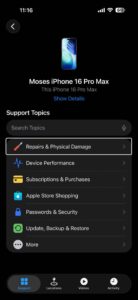
  1. Open the Apple Support app on your iPhone (if you do not have it, launch the App Store and download and install it — or click here)
  2. Select Support option at the bottom of the screen.
  3. Select your device. For the purpose of this article, we selected iPhone 16 Pro Max and then Repairs & Physical Damage and Unable to power on. Note that some problems will only let you receive support via phone calls or live chat sessions. How To Make A Genius Bar Reservation using App support app
  4. Tap Make a Reservation and find a location and date and time and then tap Reserve. Then your reservation will be made.

2. Make a Genius bar appointment via Apple web site

Without downloading and installing an app, you can also make a Genius Bar reservation via Apple’s support website. Here is how:

  1. Go to Apple’s Genius Bar web site. (URL: https://www.apple.com/retail/geniusbar/)
  2. Tap Get started to make a reservation.
  3. Sign in with your Apple Account.
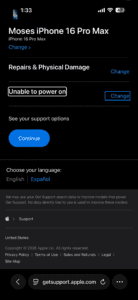
  4. Select your device. For the purpose of this article, we chose iPhone 16 Pro Max.
  5. Choose your issue. For the purpose of this article, we chose Repairs & Physical Damage and Unable to power on. Genius Bar reservation online
  6. Tap continue.
  7. Tap Find a location (Make a Reservation)
  8. Choose your location. You can search by address, city or zIP Code. You can also browse all Apple retail stores. Find the closest Apple Store that you want to go to.
  9. Select the date and time, then tap continue.
  10. Review your reservation details., then tap Reserve now. Your reservation will be confirmed. Setup Genius Bar appointment

Now you have your Genius Bar reservation. Apple will also send you a confirmation email. You can easily manage your Genius Bar appointment. You can easily cancel or reschedule it if you want to. Make sure you back up your device before going.

How to prepare for your appointment

Before your appointment, you may want to prepare for your appointment. Do not forget to back up your data (you can use iCloud. Make sure to bring all of the hardware (that you are having issues with) with you. For example, if you are having issues with your Mac, bring all of the accessories such as your mouse, keyboard. You may also be asked for your sales receipt.

Make sure that you know your Apple account password (you may have to turn off Find My).

And lastly, do not forget to bring your ID with you.

Your Genius Bar appointment may last about 15 minutes. If your device needs a hardware repair, the Genius will discuss with you regarding your repair options. This may include any applicable charges.

Primary Sidebar

Trending

A close-up view of the back of iPhone 17 Pro.

iPhone Flashlight Not Working? Here’s The Real Fix

A front and back view of two iPhone 17 Pro devices.

iPhone Black Screen? Here’s The Real Fix!

Turn on Photos in iCloud Settings

iPhone Photos Not Syncing to iCloud? Here’s The Fix

No Internet connection on your iPhone? Here’s The Fix

Show All Contacts in Your Phone App

Contacts Not Showing on iPhone? Here’s The Real Fix

Footer

Site Links

  • Home
  • Contact us
  • About Us
  • Editorial Principles
  • Our Staff
  • Write For Us
  • Guest Post Policy
  • Accessibility
  • Privacy
  • Terms
  • Copyright Notice

Copyright © 2026 iPhoneArena.com · All Rights Reserved