Is Bluetooth not working on your iPhone 15 Pro or iPhone 15 Pro Max? Bluetooth is great when it works. You may experience connecting or pairing issues when you want to connect your car, Apple Watch, or Bluetooth accessory (wireless headphones, keyboards, speakers, etc) to your iPhone 15 Pro. This article explains how you can troubleshoot your Bluetooth issues on iPhone 15 Pro.
Note: information in this article apply to iPhone 15, iPhone 15 Plus, iPhone 15 Pro and iPhone 15 Pro Max.
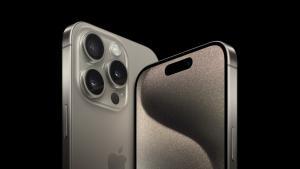
If you are experiencing Bluetooth problems on your iPhone 15 Pro, try the troubleshooting steps below. After each step, see if your issue is fixed or you still need help.
Common iPhone 15 Pro Bluetooth problems include:
- You may get error messages saying “Connection Unsuccessful”.
- Bluetooth keeps disconnecting.
- Intermittent connectivity issues.
How to Fix Bluetooth Issues on iPhone 15 Pro
Because the causes of a faulty Bluetooth connection can vary, there are numerous possible solutions to try. Here are the most effective ways to fix common iPhone 15 Pro Bluetooth problems.
1. Make sure that Bluetooth is turned on on your iPhone 15 Pro
We first tackle the obvious question — is your Bluetooth even switched on? I know it may be a bit offensive to suggest such a thing, but we all have our dozy moments. Sometimes Bluetooth is accidentally disabled on iPhone. Switching on Bluetooth on iPhone 15 Pro will then instantly make your other devices discoverable.
To confirm if Bluetooth is on, go to Settings > Bluetooth and make sure the feature is toggled to green. Once it is, it will start looking for other Bluetooth devices nearby, including AirPods, Apple Watch, and other Bluetooth devices.
2. Turn on the Bluetooth device
Your Bluetooth device needs to be powered on to connect to an iPhone 15 Pro.
If the pairing process takes a long time, your Bluetooth device may turn off because it doesn’t detect any activity. Turn it on again if it shuts down.
Also make sure that your Bluetooth accessories have enough battery life. You may want to change the batteries or charge the device. If the bluetooth device doesn’t use battery, make sure its it’s plugged to power.
3. Make sure that your iPhone 15 Pro and your accessory are close together
Bluetooth has a range of up to 30 feet. Make sure that your Bluetooth device and iPhone 15 Pro are close to each other.
4. Update your iPhone and bluetooth accessory
Is your iPhone 15 Pro Bluetooth still not working? Well, updating your phone may fix your problem.
Go to Settings > General > Software Update to check for updates. Furthermore, you may want to update your accessory’s firmware. Does your accessory have an upgradeable firmware? Make sure that you have the latest firmware. Check with the device manufacturer.
5. Make Sure Your Bluetooth Device Isn’t Connected to Something Else!
Another prime suspect in the "iPhone 15 Pro Bluetooth not working" puzzle is interference from other devices. If your Bluetooth-compatible device is already connected via Bluetooth to, say, a laptop, then you typically can’t connect your iPhone 15 Pro to it.
In such a case, you should try turning off the Bluetooth of the interfering device, then try pairing your iPhone 15 Pro with the Bluetooth-compatible device. This should work as expected, allowing you to use the iPhone and device together.
6. Turn Bluetooth on and off again
A quick reset of the Bluetooth setting can often fix any connectivity issues. This manually forces your iPhone to search for Bluetooth devices.
To turn Bluetooth on and off, open the Settings app on your iPhone 15 Pro and tap Bluetooth). Select the Bluetooth button to turn it off, wait several seconds, then select the Bluetooth button again to turn it on.
If your accessory has a Bluetooth setting, then turn off Bluetooth and then turn it on.
7. Restart your iPhone
A simple restart can fix a variety of iPhone 15 Pro problems, including those associated with connecting to a Bluetooth device.
Press and hold the Side and volume up or down buttons together until you see the power off slider. Then drag the onscreen slider from left to right. Wait until your device is completely turned off. Then press and hold the Side button until you see the Apple logo.
8. Restart your Bluetooth accessory
If you do not know how, check with its manufacturer.
9. Make sure that the app is allowed to use your device’s Bluetooth
If you are using an app with your Bluetooth accessory, make sure that the app is allowed to use your device’s Bluetooth. On your iPhone 15 Pro, go to Settings > Privacy & Security > Bluetooth and enable the App. You may also want to contact the App developer for further help.Bluetooth Privacy
10. Forget the Bluetooth Device, Then Repair again
Forget your Bluetooth device and then repair. Here is how:
- Unpair your accessory. On your iPhone 15 Pro, go to Settings > Bluetooth. Under the My Devices list, find the device that you are having issues with. Tap the (i) icon and tap Forget This Device.Forget this device.
- Make sure that your accessory is discoverable. And on your device, go to Settings > Bluetooth. And stay on this screen. And then follow the onscreen instructions to pair and connect again (you may need to enter a PIN code).
11. Reset your network settings
If your iPhone 15 Pro Bluetooth is still not working, reset your network settings. This will erase all of the network-related settings.
- First, click on Settings > General > Reset > Transfer or Reset iPhone > Reset Network Settings.
- Type your iPhone’s passcode.
- Confirm if you want to reset the iPhone’s network settings
- If you choose to reset the network settings then your iPhone will now reboot and the process is completed. Please note that doing to will erase previously connected Wi-Fi networks and passwords, and your other network settings.
12. Check for any hardware defects
If the steps above have not resolved your iPhone 15 Pro Bluetooth problem, then it is very possible that one of your devices has a hardware defect. You will need to contact Apple or device manufacturer to examine it if this is the case. This should finally clear up any iPhone 15 Pro Bluetooth connection problems, but we want to hope it doesn’t get this far.

Submit a comment