
- If Apple Pay is not working on your iPhone, make sure the terminal works with Apple Pay.
- If it does, try removing your phone case and selecting the credit card manually from your Wallet app.
- Other tips include restarting your iPhone, updating iOS, and checking your Face ID and Apple Pay settings.
- You can also try replacing your credit card in the Wallet app and signing out and back into your Apple account.
Apple Pay stands among the most advanced, widely used modern payment processing technologies. It executes transactions entirely from your iPhone. Also, since Apple Pay is accepted at over 85 percent of retailers in the U.S., you can likely use it wherever and however you want carrying nothing but your phone.
To use Apple Pay on your iPhone, first look for the contactless payment symbol at checkout. Next, double-click the side button. When your default card appears, authenticate with Face ID or your passcode. Finally, hold the top of your iPhone near the card reader until you see Done or a checkmark on the screen.
Although using Apple Pay on the iPhone is easy, the feature isn’t without its flaws. While the feature rarely crashes, it can happen. And you don’t want to be caught at the till when it does—especially if you don’t carry cash around anymore.
Fortunately, most Apple Pay issues are easy to fix. Here are seven ways you can fix Apple Pay when it’s not working on your iPhone.
Make sure the point-of-sale terminal works with Apple Pay
The first thing you should do when Apple Pay is not working on your iPhone is to verify that the POS (point-of-sale) terminal accepts Apple Pay payments. Although mobile wallets are widely recognized payment methods accepted by most major retailers in the US, you still can’t automatically assume that all merchants accept them.
If the POS system accepts Apple Pay, ask the store clerk if they frequently encounter similar issues with mobile payments. They might know some quick fixes. For instance, they might need to check the POS internet connection or change a setting at the checkout. They could even advise you to take off your phone case or hold the phone at a specific angle to improve NFC connectivity.
Remove your phone case
Take your iPhone out of its case and try the payment again. The NFC antenna on your iPhone sits near the top of the device (around the rear camera area), and bulky, metal, or magnetic cases can block the signal from reaching the card reader.
This is one of those fixes that sounds too obvious, but it trips up a lot of people — and I mean a lot. Heavy-duty shockproof cases, wallet-style cases with credit cards tucked inside, and cases with magnetic mounts for car holders are the worst offenders. If Apple Pay works fine without the case but fails with it on, you’ve found your problem and it might be time to shop for a thinner, NFC-friendly case. Even some MagSafe-compatible cases from third-party manufacturers have caused intermittent NFC failures, so don’t assume a pricey case is safe just because it has the MagSafe logo on the box.
Try choosing a card manually
When Apple Pay and the terminal are working normally, the Apple Pay wallet launches automatically with your default card selected when you bring the phone near the terminal. Although this feature streamlines checkouts, the NFC chips on POS terminals don’t always read Apple Pay properly.
In these instances, you’ll need to select your preferred card manually and then try the terminal again:
- Open the Wallet app on your iPhone.
- Choose the card you want to use for the purchase.
- Hold the top of your iPhone near the contactless reader.

If the reason why Apple Pay wasn’t working on your iPhone involved NFC connectivity, your transaction should finally push through. When this happens, you should see Done and a checkmark appear on your iPhone’s display.
If you have more than one card in your Wallet, it’s also worth checking whether the default card you’ve been using has expired or been flagged by your bank. An expired card or a card your bank has temporarily blocked for suspicious activity won’t process a payment through Apple Pay, even though it still shows up in your Wallet. You can check your card details by tapping the card in the Wallet app and then tapping the three-dot menu in the top-right corner.
Check the System Status of Apple Pay
If you’ve already tried choosing a card manually, it’s time to check the system status of Apple Pay. Apple Pay depends on an online service to be up and running, and if Apple Pay is offline, you won’t be able to complete the transaction. Of course, Apple Pay has a very high uptime and it’s unlikely to not be working. But if you want to know if the problem is at your end or at Apple’s end, visit the Apple System Status webpage and see if Apple Pay & Wallet has a green status light. If it doesn’t, nothing you do at your end will fix it, so you should make a purchase the old fashioned way.
Restart your iPhone
If you’re still unable to use Apple Pay, you should try restarting your iPhone. A quick restart refreshes your device’s memory and clears the temporary cache, which might be interfering with the Apple Pay feature. If you are not in a hurry (this will take several minutes), get out of line and restart the phone, then try again after the phone is back up and running.
To restart, press and hold the side button and either volume button until the power-off slider appears. Slide to power off, wait about 30 seconds, then press and hold the side button again until you see the Apple logo. A regular restart usually does the trick, but if Apple Pay still won’t respond after that, try a force restart instead — press and quickly release the volume up button, press and quickly release the volume down button, then press and hold the side button until the Apple logo appears.
Update your iPhone
Go to Settings > General > Software Update and install any available iOS update. Apple and card issuers periodically release updates that patch bugs affecting Apple Pay, and running an outdated version of iOS is one of the more common reasons the feature stops working — particularly right after a major release.
If you’ve been putting off an update for a while (and honestly, most of us have at one point or another), that pending update could be exactly what’s breaking your payments. Some users reported widespread Apple Pay and NFC failures after upgrading to iOS 26, and Apple addressed several of those issues in follow-up patches like iOS 26.0.1 and 26.0.2. Keeping your iPhone on the latest version won’t guarantee that Apple Pay never acts up, but it rules out a whole category of known software bugs that Apple has already fixed.
Check your Face ID and Apple Pay settings
Open Settings > Face ID & Passcode (or Touch ID & Passcode on older models), enter your passcode, and make sure Contactless & Payments is toggled on under the “Use Face ID For” section. While you’re there, scroll down and confirm that Wallet is enabled under “Allow Access When Locked.”
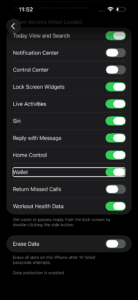
These settings can get switched off after an iOS update without any warning, and when they’re off, Apple Pay either won’t authenticate your payment or won’t even appear when you double-click the side button at checkout. You’ll also want to check one more thing: go to Settings > Wallet & Apple Pay, tap Apple Pay Defaults, and verify that Double-Click Side Button is turned on. If that toggle is off, double-clicking does nothing and you’ll just be standing at the register wondering why your cards aren’t showing up.
Replace your credit card in Apple Pay
From here on out, the potential fixes are increasingly inconvenient and time-consuming, so try them if nothing else works and you don’t want to enlist the help of Apple’s customer support.
The easiest of these more involved fixes is removing and replacing the cards in your Apple Wallet. This is especially likely to fix your problem if you have several credit cards in your wallet but only one of them fails to work. By removing and replacing that problematic card, you may be able to fix a glitch in the way that card was stored or accessed.
- Open the Wallet app on your iPhone.
- Tap the card that isn’t working properly.
- Tap the More button (⋯), then tap Card Details.
- Scroll down and tap Remove Card. You will need to confirm this choice.
- Restart your phone.
- Open the Wallet app again and tap the Add button (+).
- Tap Debit or Credit Card and follow the directions to add that same card back again.
When you re-add a card, your bank goes through a fresh verification process, which can clear out old token data or provisioning errors that built up over time. If Apple Pay shows the card as “Not Verified” or “Verification Required” after you add it back, tap the card and follow the prompts — your bank may send a verification code via text or ask you to call in.
Sign out and back into your Apple Account
It’s possible that something has gone awry with the way you are signed into your Apple account, so in the same way that you might have tried to restart your iPhone or replace your credit card, you can sign out of your Apple account and sign back in again.
- Open the Settings app on your iPhone.
- At the top of the page, tap your name.
- Scroll to the bottom of the page and tap Sign Out. You’ll need to confirm that you want to do this.
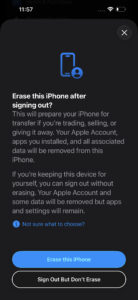
- Restart your phone.
- Return to the Settings app and sign back into your Apple account.
Signing out resets the authentication link between your Apple account and the payment tokens stored on your device. It’s a heavier fix than a restart, and you’ll need to re-enter your Apple account password and possibly go through two-factor authentication again, so make sure you have access to your trusted device or phone number before you sign out. Once you’re signed back in, your cards should reappear in the Wallet — though in some cases you may need to re-add one or two of them.
Contact Apple customer support
If Apple Pay is still not working on your iPhone, you should reach out to Apple customer support for further help. It’s possible that you have a hardware problem — for example, the NFC chip used to communicate with the point of sale terminal might not be working. This isn’t something you can easily test or troubleshoot on your own, so enlist the help of Apple.
Before you go to an Apple Store, call Apple Support at 1-800-MY-APPLE (or use the Apple Support app) and ask them to run a remote diagnostic on your iPhone. The diagnostic can check whether your NFC module is functioning properly, and it saves you a trip if the problem turns out to be software-related after all. If the diagnostic points to a hardware failure — and NFC chip failures are more common than you’d think, especially on iPhones that have been dropped — you may need an in-person repair at an Apple Store or Apple Authorized Service Provider. In some cases, a damaged NFC module requires a full board replacement, which Apple may cover partially or fully if you have AppleCare+.
If you’d rather exhaust every software option before calling Apple, you can also try resetting your network settings as a last resort. Go to Settings > General > Transfer or Reset iPhone > Reset > Reset Network Settings. This won’t erase your photos or apps, but it will wipe all saved Wi-Fi passwords, VPN configurations, and cellular settings, so you’ll need to reconnect to your Wi-Fi networks afterward. VPN apps in particular have been known to interfere with NFC payments — if you have a VPN installed, try deleting it completely (not just turning it off) and testing Apple Pay again before you reset everything.
If you decide to visit an Apple Store, make sure to book a genius bar appointment first.