On November 16, 2026, during the CDAT Summit on AI-Enabled Assistive and Rehabilitation Technologies in Bethlehem, Pennsylvania, I was preparing a presentation demonstrating the built-in accessibility of Apple’s iPhone and iPad devices when I heard about a new money reader app for the blind: NoteTell Money Reader.
NoteTell Money Reader is a currency reader app that helps people who are blind or have low vision determine the denomination of paper money by simply holding it up to a smartphone camera. Just point the lens at the bill and the app analyzes it and announces its findings in moments. Besides US dollars, it identifies euros, British pounds, Turkish lira, South African rand and more.
NoteTell Money Reader identifies even a corner of a greenback sticking out of a wallet. It repeats the denomination continuously while the camera is pointed at the bill.
NoteTell Money Reader is a free app with a one-time $14.99 in-app purchase for the Full Version, available from Apple’s App Store, and it is by far the best currency identification tool I have ever used. Compared with the other bill identifier apps I have tested, I have found it to be more accurate and much faster and easier to use. You simply hold your iPhone over the bill, with no need to flatten or straighten it out, and a voice quickly tells you the denomination. It works without an internet connection, and even in total darkness, because it turns on the iPhone’s flashlight by itself. This app works on iPhones running iOS 17 or later.
After downloading NoteTell Money Reader for free from the App Store, I installed it on my iPhone and tested it for this review. I had two notes nearby, a $20 note and a crumpled $5 bill. When the app starts, there is a page with brief instructions.
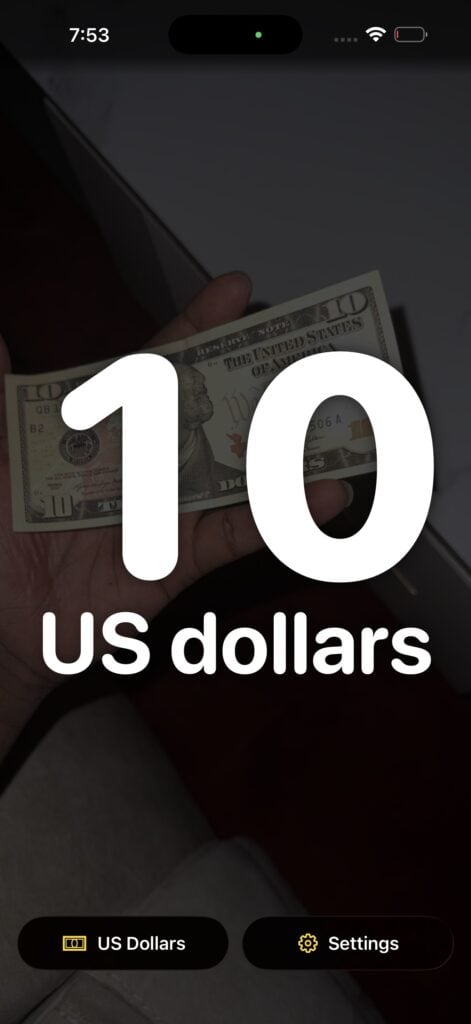
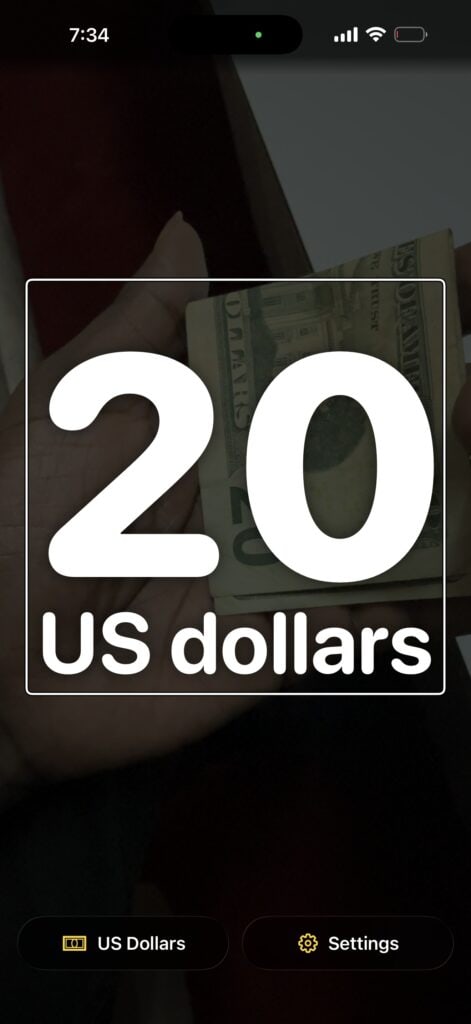
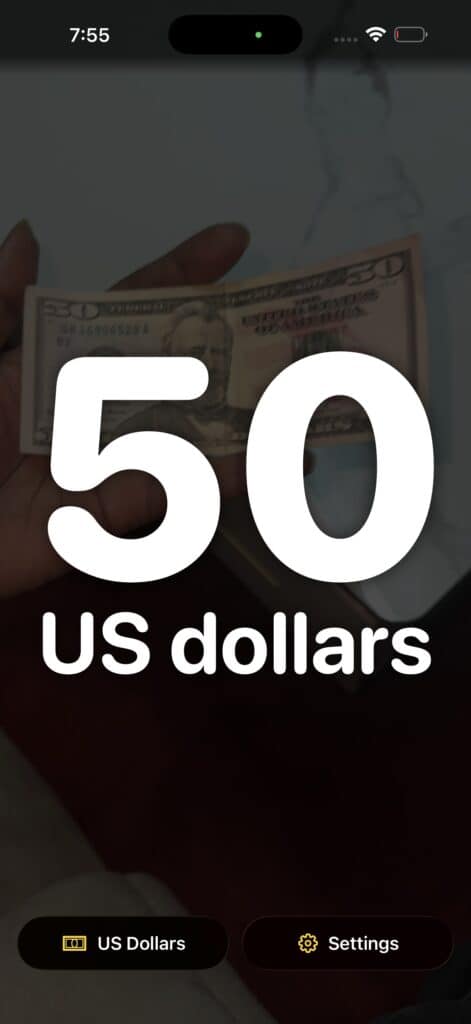
On my iPhone 15 Pro Max, the flashlight was turned on automatically. I positioned a $20 note, back side up, in front of the camera, and in under a second, NoteTell told me it was a $20. I found a $10 and a $50 note. Both were identified on both sides with no problems.
After passing those tests, I tried a $5 bill that was very crumpled up and looked like it was one step away from a shredder. To my surprise, NoteTell identified it correctly.
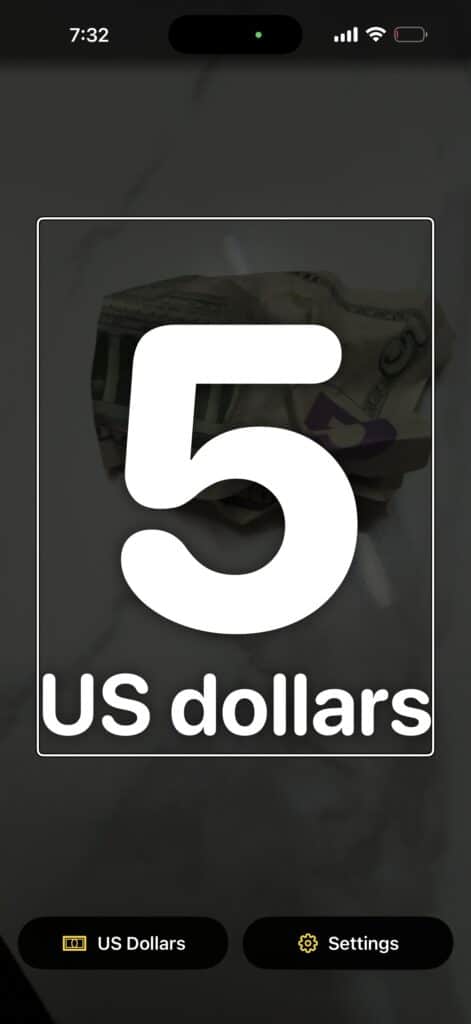
Judging by the speed and accuracy of NoteTell Money Reader during my testing, I’d say that this app is the perfect solution for people who are blind or have low vision. NoteTell Money Reader is free on the App Store, with a one-time $14.99 purchase for the Full Version, and is compatible with iPhones running iOS 17 and later.
Meanwhile, if you have an iPhone and have purchased the app yourself, please share your experiences in the comments.
Download NoteTell Money Reader on the App Store:
https://apps.apple.com/us/app/notetell-money-reader/id6830920011